How to Manage Software Permissions on Windows Effectively
Learning the best ways for managing Software Permissions on Windows helps you take control of your digital privacy and system security. When you grant an application access to your camera, microphone, or personal files, you are essentially opening a door to your private data. By understanding how to audit and restrict these gateways, you ensure that only the programs you trust have the authority to interact with your sensitive information.
This process is not just about locking things down; it is about creating a personalized environment where your software functions correctly while your personal boundaries remain intact. You will find that these adjustments lead to a much safer and more efficient computing experience.
Understanding the Basics of App Access
Windows operates on a granular permission model that dictates what each piece of software can do. When you install an application, it often requests access to specific hardware or data segments, such as your location, contacts, or storage.
These permissions are the bridge between the program and your private system resources. By default, many applications request broad access, but you have the final say in whether to grant or revoke that privilege.
Managing these settings is a fundamental part of maintaining a secure PC. If you leave every permission enabled, you increase the surface area for potential privacy leaks or unauthorized data collection.
A proactive approach involves reviewing these settings periodically to ensure that your active software remains within the scope of its intended purpose. You do not need to be a system administrator to make these changes effectively.
Accessing the Privacy Settings Menu
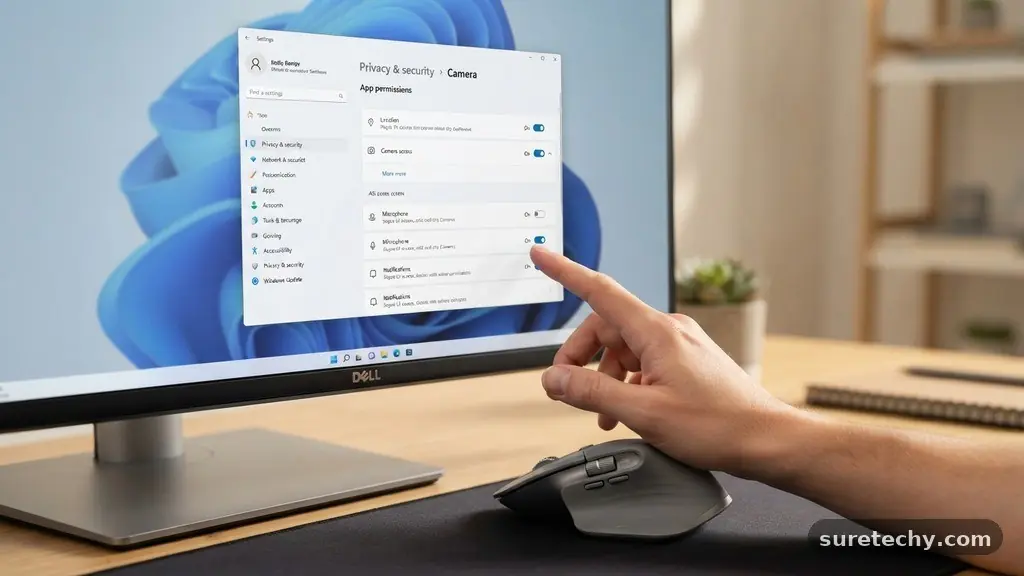
The primary hub for controlling what your programs can do is the Privacy and Security section within the Windows settings. To get there, simply open the Start menu and click on the gear-shaped icon to launch the Settings application.
From there, look for the “Privacy & security” tab located in the left-hand navigation pane. This menu acts as the master dashboard for all hardware-level permissions.
Once inside this menu, you will see a list categorized by specific hardware components or data types. Examples include Camera, Microphone, Location, and Notifications.
Each category contains a toggle switch that allows you to globally enable or disable access for all apps on your system. You can also drill down into each category to see a list of specific applications that have requested access to that resource.
Controlling Hardware-Level Permissions
Hardware permissions are perhaps the most critical to monitor because they involve physical sensors. If a malicious or poorly designed app gains access to your camera or microphone, it could theoretically capture footage or audio without your knowledge. When you view the list of apps under the Camera or Microphone settings, look for programs you do not recognize or those that have no logical reason to use your hardware.
If you find a program that shouldn’t have access, simply flip the individual toggle to the “Off” position. This immediately severs the connection between that specific software and your hardware.
You can always re-enable it later if you find that a specific feature within the app stops working correctly. This granular control allows you to keep your system functional while maintaining high privacy standards.
Managing File System and Folder Access
Beyond hardware, you must consider the files stored on your hard drive. Windows allows you to restrict which applications can read, write, or modify your personal folders like Documents, Pictures, and Videos. This is crucial for protecting sensitive documents or private media from being accessed by third-party software that might attempt to scan your drive.
To manage this, navigate to the “File system” section within the Privacy and Security settings. Here, you can decide which apps have permission to access your entire file system. If you prefer a stricter approach, you can disable global access and only grant permissions to trusted software that requires it for legitimate tasks, such as cloud storage clients or photo editors.
Comparing Permission Management Approaches
Different users require different levels of restriction based on their workflow and risk tolerance. Some prefer a “lockdown” approach, while others prioritize convenience and ease of use. The following table provides a quick look at how these strategies differ in daily practice.
| Strategy | Risk Level | User Effort | Best For |
|---|---|---|---|
| Strict Lockdown | Very Low | High | Privacy-conscious users |
| Balanced Access | Moderate | Low | Average home users |
| Open Access | High | None | Testing/Development environments |
Using Group Policy for Advanced Control
For users on Windows Pro or Enterprise editions, the Local Group Policy Editor offers a more powerful way to manage permissions across the entire system. This tool is designed for administrators, but it is accessible to anyone comfortable with more advanced settings. You can use it to force certain permissions to remain off or to prevent users from changing specific privacy settings.
To access this, press the Windows key + R, type “gpedit.msc,” and hit Enter. Navigate to Computer Configuration, Administrative Templates, and then Windows Components.
Here, you will find settings related to App Privacy that allow you to enforce strict policies. Be careful when modifying these, as incorrect settings can prevent necessary system updates or legitimate applications from functioning as intended.
Common Permission Issues and Troubleshooting
Sometimes, you might find that an application stops working properly after you change its settings. This is usually because the app was relying on a specific permission to perform a core task.
For instance, a video conferencing tool will fail to send audio if you have revoked its microphone access. If you suspect a permission issue, the first step is to check if the application appears in the blocked list within your Privacy settings.
If an app is not working, try toggling its permission off and back on again to reset the connection. You may also need to restart the application for the changes to take effect.
If you are still experiencing problems, check the official documentation for that specific software. You can learn more about how Windows handles these security protocols through the official Microsoft security documentation.
Essential Steps for a Secure System
To keep your system clean and secure, follow a regular maintenance routine regarding your app permissions. It is easy to accumulate dozens of programs over time, many of which you may no longer use. A bloated system with excessive permissions is harder to monitor and more prone to security oversights.
- Uninstall applications you no longer use to automatically remove their access rights.
- Review hardware permissions (Camera/Microphone) once every three months.
- Disable location access for apps that do not require it for navigation or weather.
- Check background app permissions to prevent unnecessary battery drain and data usage.
- Use a standard user account for daily tasks instead of an administrator account to limit potential damage.
Frequently Asked Questions
Can I disable permissions for all apps at once?
Yes, most privacy categories in the Windows settings include a master toggle switch. Turning this off will globally restrict access for all applications, though you can still manually re-enable access for specific apps if needed.
What happens if I accidentally block a necessary app?
You can always go back to the same settings menu to re-enable the permission. The app will usually prompt you if it lacks the necessary access, or it will simply fail to perform a specific function until you restore the connection.
Do these settings apply to web browsers?
Windows settings control access for desktop applications, but web browsers often manage their own permissions separately. You will need to check the settings inside your browser, such as Chrome or Edge, to manage site-specific permissions like camera or microphone usage.
Why do some apps not appear in the privacy list?
Only modern apps that use the Windows permission framework will appear in these lists. Some older, traditional desktop programs may not request permissions through Windows and instead access hardware directly, which makes them harder to restrict through these standard settings.
Is it safe to leave all permissions turned on?
While this is convenient, it is not recommended for security reasons. Every permission granted is a potential vector for data collection, so it is safer to only enable access for applications that you trust and use regularly.
Conclusion
Managing Software Permissions on Windows is a vital skill for anyone who values their digital security. By taking the time to review which applications have access to your hardware and files, you significantly reduce your exposure to privacy risks. This process ensures that your computer remains a tool for your productivity rather than a source of concern.
Start by checking your most sensitive categories, such as your camera and microphone, and work your way through your installed applications. You will find that regular maintenance makes your system feel more controlled and secure.
If you ever feel uncertain, remember that you can always reset these settings to their default states. Taking these small, consistent steps makes a world of difference in your overall digital well-being.