How to Move Large Files Without Losing Data Effectively
Successfully moving large files without losing data requires a combination of reliable hardware, stable internet connections, and the right software verification tools. Whether you are migrating entire project folders to a new computer or sending high-resolution video files to a client, the primary risk is data corruption caused by interrupted transfers or hardware failures.
By using checksum verification and choosing the right storage media, you can ensure that every single bit arrives intact. This article explains how to manage these transfers safely, helping you avoid the common pitfalls that lead to missing or unreadable files.
Verifying File Integrity with Checksums
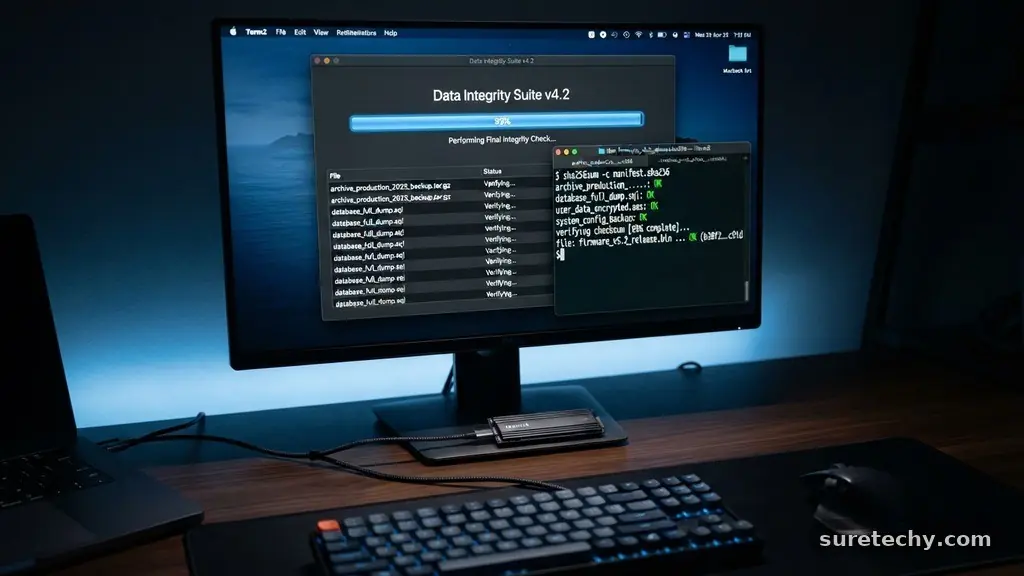
The most reliable way to ensure you are moving large files without losing data is to utilize checksums. A checksum is a unique string of characters generated by an algorithm that acts as a digital fingerprint for your file.
Before you move a file, you generate this fingerprint on the source drive. Once the transfer is complete, you generate a new fingerprint on the destination drive and compare the two strings.
If the fingerprints match exactly, you have confirmed that the data was copied bit-for-bit without corruption. If they differ even slightly, the file is incomplete or damaged.
Tools like HashTab for Windows or the built-in Terminal commands on macOS make this process accessible for average users. Always perform this check when dealing with critical archives or databases.
Choosing the Right Physical Media
When you decide to move large files without losing data using physical hardware, the quality of your storage device matters significantly. A cheap USB drive may seem convenient, but these devices often suffer from controller failures that cause silent data corruption. For high-volume transfers, prioritize external Solid State Drives (SSDs) or high-quality hard disk drives (HDDs) from reputable manufacturers.
Formatting your drive correctly is just as important as the hardware itself. If you are transferring files larger than 4GB, avoid the older FAT32 file system, as it cannot handle individual files of that size.
Instead, use exFAT if you need compatibility between Windows and macOS, or NTFS if you are strictly operating within the Windows ecosystem. Always safely eject the drive through the operating system before physically disconnecting it to prevent interrupted write processes.
Cloud Storage and Managed Transfers
Internet-based transfers offer a convenient alternative to physical media, provided you have a stable connection. When moving large files without losing data over the cloud, avoid using standard browser-based uploads for massive datasets. Browsers are prone to timing out, which can leave a file partially uploaded and corrupted.
Instead, use dedicated desktop applications provided by services like Dropbox, Google Drive, or OneDrive. These clients use block-level synchronization, meaning they can resume an interrupted transfer exactly where it left off rather than starting from scratch.
They also often perform background integrity checks to ensure the uploaded data matches the original source. If you are sending files to another person, consider professional services like National Institute of Standards and Technology guidelines for secure digital storage practices, which emphasize the importance of encrypted transmission protocols.
| Method | Best For | Risk Level |
|---|---|---|
| External SSD | Local backups/Migration | Low |
| Cloud Sync Client | Remote collaboration | Low (with stable net) |
| Standard Email | Small documents | High (size limits) |
| USB Flash Drive | Casual transport | Medium (hardware failure) |
Managing Network Interruptions
A common cause of data loss during a digital transfer is an unstable network connection. When moving large files without losing data, you should avoid relying on public Wi-Fi networks that frequently drop packets or disconnect. Use a wired Ethernet connection whenever possible to ensure a consistent and high-speed throughput.
If you must use Wi-Fi, ensure your computer is set to “High Performance” mode to prevent the system from putting the network card to sleep. Some advanced file transfer protocols, such as FTP or SFTP, allow for “resumable” transfers. If your connection drops, the software can query the server to see which parts of the file were successfully received and only transmit the remaining data.
Preparing Files for Transfer
Before you begin the transfer, it is often helpful to archive your files into a single container. Compressing a folder into a ZIP or RAR file allows you to create a secondary validation layer. Most archiving tools include a feature called “Test Archive” or “Repair” that uses parity data to recover bits that might go missing during the transit process.
This method also simplifies the organization of your data. Instead of moving thousands of tiny files, which increases the chance of a file-system error, you are moving one large, singular object.
This reduces the overhead on your operating system and speeds up the overall transfer time. Just remember to keep the original files untouched until you have verified the integrity of the new archive.
Common Pitfalls to Avoid
Many users encounter issues when they try to move large files without losing data while the computer is under a heavy load. Running resource-intensive software like video editors or games while a large copy operation is in progress can lead to system stutters. These stutters can interrupt the data stream and result in a write-error on the target drive.
Another common mistake is ignoring the free space requirements on the destination drive. If a drive runs out of space mid-transfer, the OS may simply stop writing, leaving you with a truncated file that cannot be opened.
Always ensure the destination has at least 20% more space than the total size of the data you are planning to migrate. This buffer helps the file system manage its internal index tables more efficiently.
Using Specialized Transfer Software
There are many specialized utilities designed specifically to handle large-scale data migrations. Tools like TeraCopy or FastCopy are popular choices for Windows users because they replace the standard system copy handler. These programs provide a much higher level of control over the transfer process.
They can automatically skip corrupted files, retry failed attempts, and verify every single byte written to the destination disk. Unlike the standard “Copy-Paste” function in Windows, which often fails silently, these tools provide a detailed error log. If a transfer fails, you will know exactly which file caused the issue, allowing you to troubleshoot that specific item rather than guessing what went wrong.
- Use checksums to verify that the file remains unchanged after the move.
- Avoid using FAT32 formatting; choose exFAT or NTFS for large files.
- Always use a wired Ethernet connection for massive cloud uploads.
- Archive your files into a single container to reduce the total number of operations.
- Utilize dedicated copy software like TeraCopy for better error logging.
- Check destination drive health before starting a long-term migration.
Frequently Asked Questions
What is the safest way to move files between two computers?
The safest way is to use an external SSD connected via a high-speed USB 3.0 or Thunderbolt port. After copying the files, always run a checksum verification tool to compare the source and destination files. If you are moving data over a network, a wired Ethernet connection is significantly more reliable than Wi-Fi.
Why do my files become corrupted during a transfer?
Corruption usually occurs because of an interrupted write process, such as a power surge, a cable being unplugged prematurely, or a failing hard drive controller. Software errors and file system crashes can also cause data loss. Using specialized software that supports verification and resuming can mitigate these risks.
Is it better to compress files before moving them?
Yes, compressing files into a single archive is often safer and faster. It reduces the number of individual file operations, which lowers the chance of a system error. Additionally, many archive formats allow you to add recovery records, which can help fix minor bits of corruption if they occur.
How can I send a file that is too large for email?
Most email services cap attachments at 20MB to 25MB. Instead of email, use a dedicated cloud service like Google Drive, Dropbox, or WeTransfer. These services are designed to handle large file uploads and provide stable links that you can share with others, ensuring the data is transmitted securely without being blocked by mail servers.
Does the file system matter when moving data?
Yes, the file system dictates how large a single file can be and how the data is indexed. Using an outdated file system like FAT32 will prevent you from moving any single file larger than 4GB. Always format your external drives using modern systems like exFAT or NTFS to ensure compatibility and support for large files.
Successfully moving large files without losing data is a process that relies on careful preparation and verification. By implementing checksum checks, using the right file systems, and choosing stable hardware, you significantly reduce the risk of corruption. Remember to avoid interrupted transfers and always verify your results before deleting the original copies.
If you take these systematic precautions, you can be confident that your digital assets will remain intact regardless of how far they need to travel. Should you encounter any persistent errors, consider testing your hardware for bad sectors, as even the best software cannot compensate for a failing physical drive. Take your time with these transfers, and your data will arrive safely every time.