How to Reduce Software Clutter on Your Computer
Reducing software clutter on your computer is one of the most effective ways to boost system performance and reclaim your digital peace of mind. When your drive is filled with unused programs, lingering temporary files, and forgotten applications, your operating system often slows down, making everyday tasks feel like a chore.
By taking a proactive approach to managing your digital environment, you can free up valuable storage space and ensure your machine runs as efficiently as possible. This process isn’t just about cleaning; it’s about creating a streamlined workspace that allows you to focus on your work rather than managing system bloat.
Identifying Unused Applications
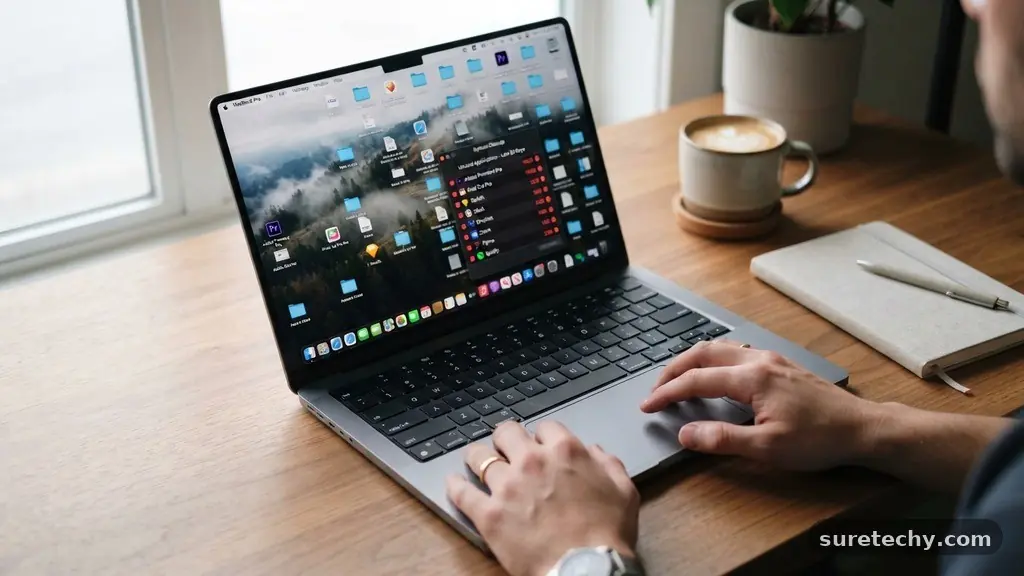
The most immediate step for reducing software clutter on your computer is identifying the programs you no longer use. Many of us fall into the trap of installing software for a single project or a temporary need, only to leave it sitting on our hard drive for years. These programs often run background processes, check for updates, or place icons in your system tray, all of which consume resources you don’t need to sacrifice.
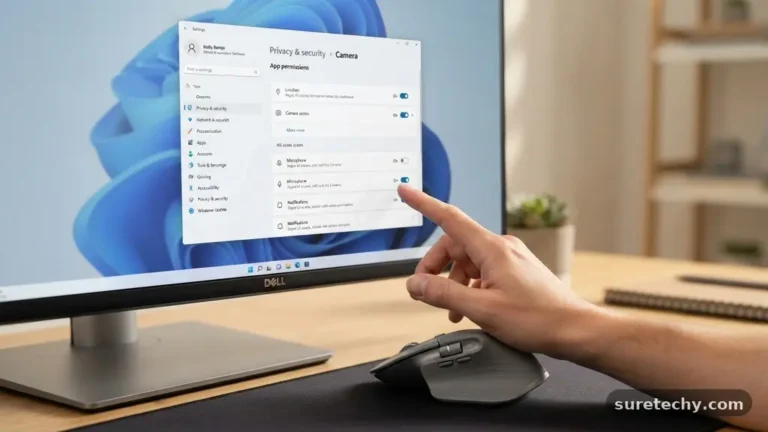
Start by opening your system’s settings menu to view the list of installed applications. On Windows, this is found in the “Apps & Features” section, while macOS users can check the “Applications” folder.
Don’t just look for names you don’t recognize; look for the ones you haven’t opened in more than six months. If you can’t remember the last time you used a specific piece of software, it is likely a candidate for removal.
Be cautious when removing specialized drivers or software labeled as “Microsoft” or “Apple.” If you are unsure about a specific program, a quick search online can tell you whether it is essential for your operating system’s stability. Most legitimate applications provide a clear “uninstall” option, which is the safest way to remove them without leaving behind broken registry keys or orphaned files.
Managing Startup Programs
Software clutter isn’t just about disk space; it is also about how many programs compete for your processor’s attention the moment you turn on your machine. Many apps automatically configure themselves to launch during the boot process, which can lead to significant delays in startup times. By managing these startup items, you can drastically improve the responsiveness of your computer.
On Windows, you can access the Task Manager by pressing Ctrl+Shift+Esc and navigating to the “Startup” tab. You will likely see a list of applications, many of which you may not need running in the background at all times. Disable any program that doesn’t need to be immediately available, such as media players, cloud syncing tools, or update checkers.
On a Mac, you can manage these by going to System Settings, selecting “General,” and then “Login Items.” Removing unnecessary items here doesn’t mean you are deleting the software; it simply means the program won’t launch until you manually click on it. This simple adjustment often makes a computer feel years younger, as your RAM and CPU are no longer bogged down by background tasks.
Cleaning Up Temporary Files
Temporary files are created by your browser, installers, and various programs to help them perform tasks quickly. Over time, these files accumulate in hidden directories, occupying gigabytes of space without providing any ongoing utility. When reducing software clutter on your computer, clearing these caches is a high-impact action that requires very little effort.
Windows includes a built-in tool called “Disk Cleanup” that automatically identifies and deletes these unnecessary files. You can also use the “Storage Sense” feature, which allows the operating system to periodically purge temporary data and files in your recycle bin. These tools are designed by the operating system developers to be safe and effective, ensuring you don’t delete anything vital.
For users who prefer a more manual approach, you can clear browser caches directly within your web browser’s settings. Browsers like Chrome or Firefox store vast amounts of data to speed up page loads, but this data can become bloated. Clearing your cache and cookies once a month is a healthy habit that keeps your browsing experience fast and your storage footprint small.
Organizing Your Desktop and Folders
A cluttered desktop acts as a visual distraction that can hinder your productivity. When your screen is covered in icons, shortcuts, and loose files, your brain spends extra energy just finding what it needs. A clean, organized desktop is the hallmark of an efficient digital workspace, and achieving it is easier than you might think.
Start by creating a few primary folders for your documents, projects, and downloads. Move all the loose files on your desktop into these folders, and then delete the shortcuts to programs you already have pinned to your taskbar. If you find you have too many files to sort, try the “12-12-12” method: pick 12 items to throw away, 12 to return to their proper place, and 12 to give away or archive.
You can also use a simple table to categorize the types of files you encounter most often. This helps you decide which files deserve a spot in your active folders and which should be relegated to external storage or cloud backups.
| File Type | Action Required | Frequency |
|---|---|---|
| Downloads | Clear or move to archive | Weekly |
| Desktop Icons | Delete or sort into folders | Daily |
| Temporary Cache | Run cleanup tool | Monthly |
| Old Installers | Delete permanently | Quarterly |
Managing Large Media Files
Photos and videos are often the biggest culprits when it comes to disk space consumption. High-resolution images and long video files can quickly fill up your drive, leaving little room for essential software updates. To effectively reduce clutter, you must audit your media collection and move non-essential files to external storage.
Consider moving your photo library to an external hard drive or a secure cloud service. Once you have confirmed the files are safely backed up, you can remove them from your computer’s internal storage. This is particularly useful for users with limited SSD space, where every gigabyte counts toward system performance.
You should also look for duplicate files that may have accumulated over the years. It is common to have multiple copies of the same photo or document saved in different locations. Using a dedicated file-management tool can help you identify these duplicates and remove them, further simplifying your file structure.
Utilizing Cloud Storage Solutions
Cloud storage has transformed how we manage data, allowing us to keep our files accessible without keeping them locally on our machine. By moving your rarely used documents and archives to a cloud provider, you reduce the physical burden on your computer’s hard drive. This helps in reducing software clutter on your computer by ensuring only the files you need today occupy your local space.
Most modern operating systems offer deep integration with cloud services, making it feel as if the files are still on your machine. You can set these services to “online only” mode, where the file metadata is visible, but the actual data is only downloaded when you open it. This is a game-changer for maintaining a tidy, high-performance system.
Before moving files to the cloud, always review your privacy settings and ensure your account is secured with multi-factor authentication. You can read more about the importance of digital security at the Cybersecurity & Infrastructure Security Agency. Keeping your data secure while offloading it to the cloud is a smart, modern way to manage your digital footprint.
Maintaining a Clean Digital Environment
Once you have done the heavy lifting, the goal is to prevent the clutter from returning. This requires a shift in how you install and manage software in your daily life. Before installing a new app, ask yourself if it is truly necessary or if a web-based alternative could serve the same purpose.
Many tasks that previously required a desktop application can now be handled entirely through a web browser. By opting for web apps, you avoid installing bloatware and keep your operating system clean. If you do install a new program, make a habit of checking its settings to ensure it doesn’t try to launch at startup by default.
Consistency is key to keeping your computer running smoothly. Set a recurring reminder in your calendar to perform a quick “digital audit” every few months. During this time, empty your trash, review your downloads folder, and remove any apps that you haven’t touched since your last audit.
Frequently Asked Questions
Is it safe to delete files from the Windows/AppData folder?
Generally, you should avoid deleting anything in the AppData folder unless you are an advanced user. This folder contains configuration files for your applications, and deleting the wrong file could cause your software to crash or reset your personal settings.
What is the 5-5-5 rule for decluttering?
The 5-5-5 rule suggests that you spend five minutes clearing your desktop, five minutes organizing your downloads folder, and five minutes deleting old emails or temporary files. It is a quick way to maintain order without feeling overwhelmed by a massive cleaning project.
Will deleting programs speed up my computer significantly?
If your hard drive is nearly full, deleting large, unused programs can definitely help your operating system perform better. However, the most significant speed improvements usually come from managing startup items and reducing the number of background processes.
Should I use third-party “PC cleaner” software?
Most experts recommend avoiding third-party “cleaners,” as many of them are unnecessary and can sometimes cause more harm than good. Your operating system’s built-in tools are safer, more reliable, and sufficient for almost all standard maintenance tasks.
How do I know if a file is safe to delete?
If you are unsure about a file, try moving it to a temporary folder instead of deleting it immediately. If your system continues to function normally for a week, you can safely delete the contents of that temporary folder later.
Conclusion
Reducing software clutter on your computer is an ongoing process that pays off in both speed and clarity. By regularly auditing your applications, managing your startup programs, and keeping your files organized, you ensure that your machine remains a reliable tool rather than a source of frustration. You don’t need to be a technical expert to see the benefits; you only need to be consistent with your digital habits.
Start by tackling one section of your computer at a time, such as your desktop or your list of installed apps. You will likely find that a small amount of effort leads to a noticeably smoother experience. If you have any favorite tips for maintaining a clean system, feel free to share your own approach to keeping your digital space tidy and efficient.