Best Free Tools for Managing Files on Windows
Finding the best Free Tools for Managing Files on Windows can transform how you interact with your digital workspace every single day. While the native Windows File Explorer is functional, many power users find it limiting when handling complex directory structures or large batches of data.
By moving to third-party alternatives, you gain access to advanced features like tabbed browsing, dual-pane views, and sophisticated search filters that save hours of manual effort. This article explores the most reliable software options available today, helping you choose a solution that aligns with your specific workflow needs without costing a cent.
Evaluating the Standard Windows File Explorer
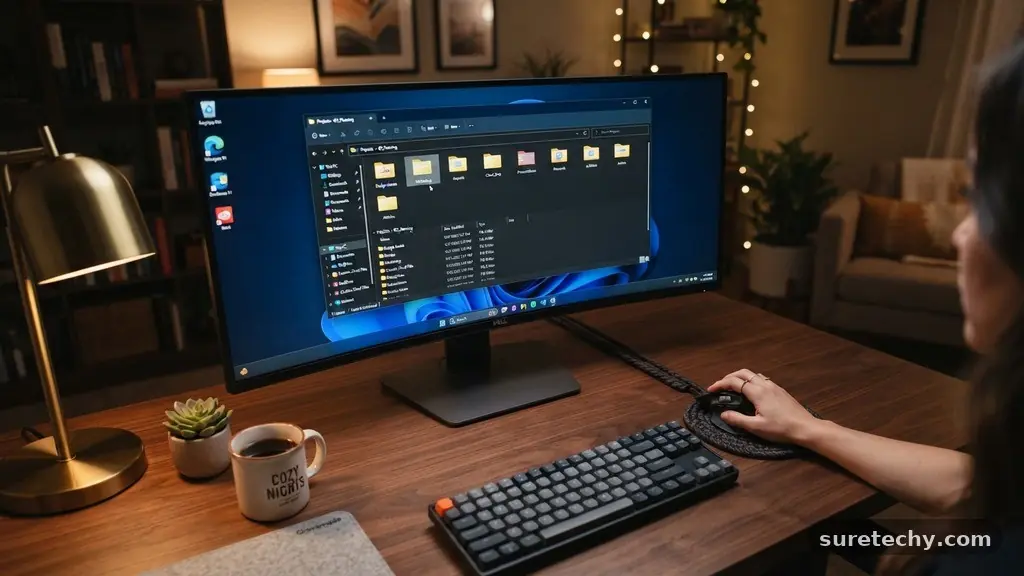
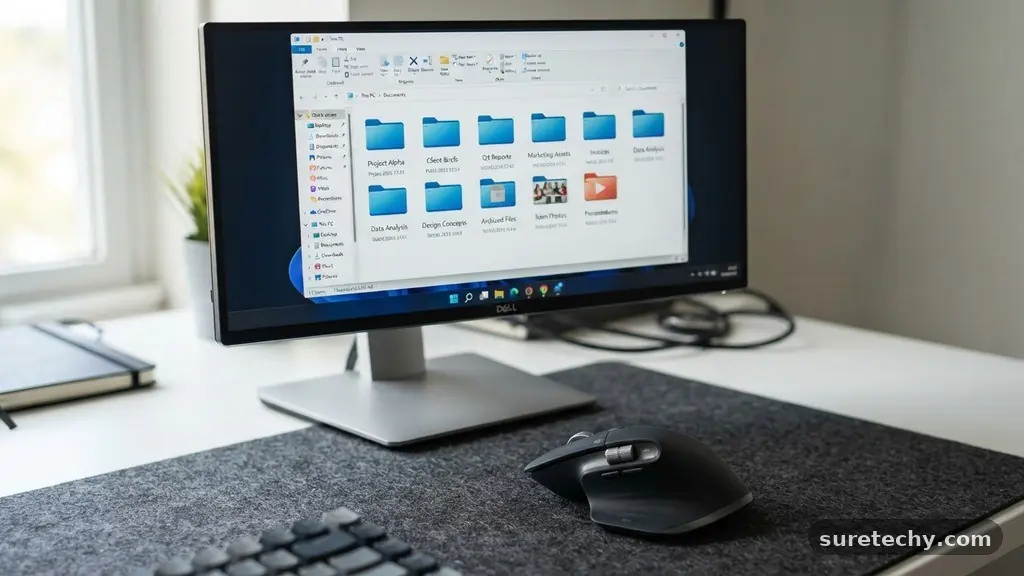
The default file manager included with Windows has evolved significantly over the years, yet it remains a basic utility at its core. It serves the average user well for simple navigation and basic drag-and-drop tasks, but it lacks the depth required for heavy file management. You might notice that performing complex operations, such as synchronizing folders or comparing directory contents, is cumbersome within the standard interface.
One primary limitation is the lack of a native dual-pane view, which is standard in many professional-grade file managers. When you are moving files between two specific folders, having them side-by-side significantly reduces the risk of accidental drops into the wrong location. Additionally, the search functionality in the default explorer can be sluggish, especially when indexing large hard drives or network-attached storage devices.
If you find yourself opening multiple windows to perform a single task, you are likely outgrowing the native tool. Switching to a more capable application allows you to consolidate your workspace and keep your digital environment organized. Many of these alternatives are lightweight, meaning they don’t bloat your system resources while providing a much more responsive experience than the stock utility.
Why Consider Alternative File Management Software
Transitioning to a dedicated file manager provides immediate benefits regarding efficiency and control. These tools are designed for users who deal with high volumes of data, such as photographers, developers, or researchers who need to keep thousands of files in order. When you use a specialized application, you can often execute complex tasks with a single keyboard shortcut rather than multiple mouse clicks.
Customization is another major advantage of using these free tools. You can often tailor the user interface to show exactly the metadata you care about, such as file hash, creation date, or specific tag information. Some software even allows for scripting, letting you automate repetitive tasks like renaming files in bulk or moving them based on specific extensions.
Consider the following table comparing common features found in standard versus advanced file managers:
| Feature | Standard Explorer | Advanced Alternatives |
|---|---|---|
| Dual-Pane View | No | Yes |
| Tabbed Browsing | Yes (Recent versions) | Yes (Highly customizable) |
| Batch Renaming | Basic | Advanced/Regex support |
| Keyboard Shortcuts | Limited | Extensive/Customizable |
Top Contenders for Power Users
When searching for the best Free Tools for Managing Files on Windows, a few names consistently rise to the top of the list. Total Commander is perhaps the most iconic, known for its classic dual-pane interface that has remained largely unchanged for decades. While it operates on a shareware model, its trial period is famously indefinite, making it a staple in many professional environments.
OneCommander is another modern favorite that focuses on a sleek, Windows 11-inspired aesthetic while retaining deep functionality. It supports breadcrumb navigation, which allows you to jump between folders quickly without navigating the entire tree. It is particularly well-suited for users who want a modern look without sacrificing the power of a dual-pane layout.
There is also the option of open-source projects that prioritize transparency and security. These tools are often maintained by communities of developers who are dedicated to keeping the software free for both personal and commercial use. If you are concerned about telemetry or data privacy, choosing an open-source file manager is an excellent way to ensure your file management practices remain entirely private.
Advanced Filtering and Search Capabilities
The ability to locate specific files quickly is perhaps the most important feature for any file manager. While the Windows search indexer works, it often misses files or takes too long to update. Dedicated file managers often implement their own indexing engines, which can return results in milliseconds even when scanning millions of files.
You can often filter your search by file size, date modified, or specific attributes that the default explorer might ignore. For instance, if you are looking for files created within a specific hour, a robust file manager can parse the metadata instantly. This is invaluable when you are trying to clear space or identify files that were recently modified by a specific application.
Some of these tools even allow for content-based searching. You can search for strings of text inside files without needing to open them, which is a massive time-saver for programmers or writers. By integrating these tools into your daily workflow, you minimize the “hunt” and maximize the time spent actually working on your projects.
Customization and Workflow Automation
The best file management experience is one that adapts to your habits. Many free tools allow you to create custom buttons in the toolbar that trigger specific scripts or applications. For example, you could create a button that automatically opens your selected files in a specific image editor or compresses them into a ZIP archive.
You can also define custom keyboard shortcuts for almost every action. If you find yourself repeatedly copying files to a specific backup folder, you can map that action to a simple hotkey. This level of automation turns a potentially tedious chore into a background task that takes only a fraction of a second.
Furthermore, many of these applications support plugins or extensions. If you need special support for cloud storage services, FTP protocols, or encrypted drives, you can often find a plugin that adds this capability directly into your file manager. This modular approach ensures that your software remains lightweight while still providing the specific features you need for your unique setup.
Managing Permissions and Security
When you are working in a professional or shared environment, managing file permissions becomes a critical task. Windows has a robust permission system, but navigating it through the standard properties dialog can be incredibly tedious. Advanced file managers often provide a dedicated interface for modifying Access Control Lists (ACLs) and ownership settings.
You can quickly see which users have read or write access to a specific directory and make changes in bulk. This is particularly useful for system administrators who need to audit file access across a network. By having a clear view of these settings, you avoid the common mistakes that lead to restricted access or security vulnerabilities.
Additionally, some file managers include built-in tools for secure file deletion. Standard deletion only marks a file as space to be overwritten, meaning the data can often be recovered with forensic software. Using a file manager with a “secure wipe” or “shred” feature ensures that your sensitive information is permanently removed from the storage medium.
Maintaining Performance on Older Hardware
If you are running Windows on older hardware, the native file explorer might feel slow and sluggish. Many of the alternative file managers are written in efficient languages like C++ or Rust, making them extremely lightweight. They consume significantly less RAM and CPU, which can breathe new life into an aging machine.
These tools are often optimized to handle deep directory structures without locking up the user interface. When you open a folder with thousands of files, the application loads only the necessary thumbnails and metadata, ensuring that scrolling remains smooth. This responsiveness is a hallmark of well-developed file management software.
If you want to read more about how system performance impacts software choice, you can visit the official Microsoft Windows support pages for tips on optimizing your environment. While the OS provides the foundation, your choice of third-party tools acts as the layer that manages your interaction with the disk. By selecting efficient software, you ensure that your computer remains snappy regardless of how many files you are managing.
Common Questions About File Management
What is a good free file manager for Windows?
There are several excellent options, but the choice often comes down to your preference for interface design. Total Commander is the industry standard for power users, while OneCommander offers a modern look that feels right at home on Windows 11.
Does Windows 11 have a built-in file manager?
Yes, Windows 11 includes a native file explorer that has been updated with a tabbed interface. While it is better than previous versions, many users still find it lacks the advanced batch processing and dual-pane features found in dedicated third-party software.
Is it safe to use third-party file managers?
Yes, provided you download them from reputable sources or official developer websites. Most established file managers are open-source or have long histories of reliability in the developer community, meaning they are safe to use for your daily tasks.
Can these tools handle network drives?
Most advanced file managers have built-in support for network-attached storage and can even manage FTP or SFTP connections. This allows you to treat remote files as if they were located on your local hard drive, simplifying file transfers significantly.
Do I need to pay for professional features?
Many tools follow a “freemium” model or are completely free for personal use. While some may ask for a license fee for commercial use, the vast majority of features needed by individual users are available for free without any restrictions.
Selecting the Right Tool for Your Needs
Choosing among the best Free Tools for Managing Files on Windows is ultimately about identifying your most frequent pain points. If you are tired of clicking through endless nested folders, a file manager with breadcrumb navigation or a dual-pane interface will provide immediate relief. If you struggle with file organization, look for software that supports advanced batch renaming and automated sorting rules.
Take the time to test two or three different applications for a few days. You will quickly discover which interface feels most intuitive and which tool provides the specific shortcuts you use most often. There is no single “perfect” file manager, but there is certainly one that will fit your workflow like a glove.
By investing just a little bit of effort into finding the right software today, you will save countless hours of frustration in the long run. Enjoy the increased productivity that comes with a well-organized and highly responsive file management system on your Windows machine.