
How to Recover Files After Accidentally Deleting Them
Recovering files after accidentally deleting them is a situation most computer users face at least once. Whether you clicked the wrong button or a system error wiped your data, the immediate feeling of panic is universal. Fortunately, modern operating systems and recovery utilities offer several pathways to retrieve your lost work.
By acting quickly and avoiding new writes to your storage device, you significantly increase the chances of a successful restoration. This article explains the technical steps and logical precautions required to get your information back safely and effectively.
Immediate Steps to Take After Deletion
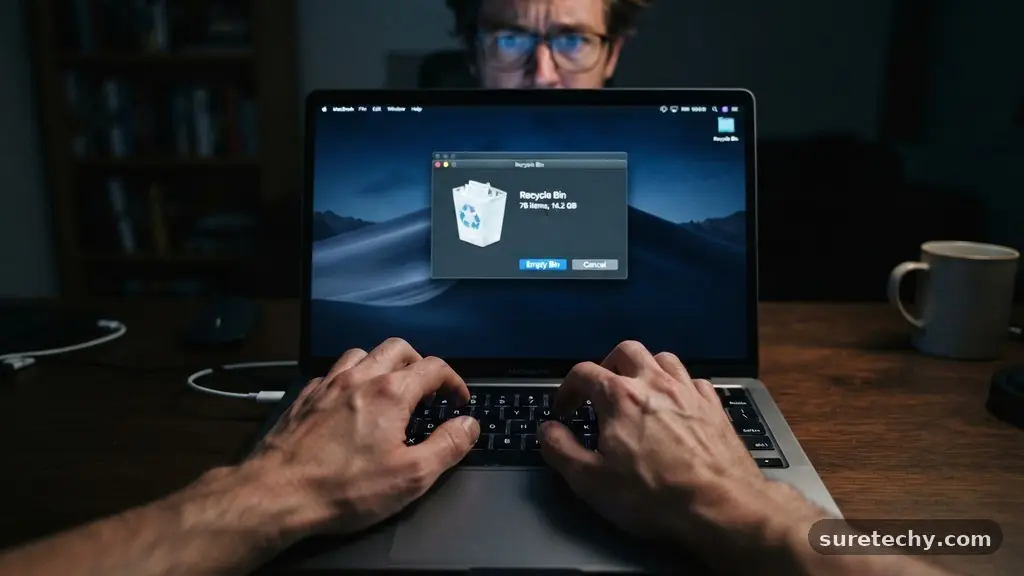
The most critical rule when you realize a file is missing is to stop using the affected drive immediately. Every action you take—saving a new document, downloading an update, or even browsing the web—creates temporary files. These temporary files can overwrite the physical space where your deleted data still resides.
When you delete a file, your system doesn’t immediately erase the binary code. Instead, it marks that space as “available” for future use.
If you are working on a laptop or desktop, close all unnecessary applications right away. If the file was on an external hard drive or a USB thumb drive, physically disconnect the device from your computer.
This prevents the operating system from performing background tasks that might finalize the permanent destruction of your information. Keeping the drive in its current state is the single best way to ensure that recovery tools can identify and reconstruct the original file structure.
Checking the Recycle Bin or Trash
Before diving into advanced technical solutions, always check the most obvious location. On Windows, the Recycle Bin holds items you have sent to the trash until you manually empty it or the system reaches a storage limit.
On macOS, the Trash folder serves the same purpose, providing a safety net for accidental removals. Many users skip this step in their panic, yet it resolves a high percentage of data loss incidents.
To restore a file from the bin, simply open the icon on your desktop and locate the item. Right-click the file and select “Restore” to send it back to its original folder.
If you cannot see your file, ensure you are viewing the bin by “Date Deleted” to make it easier to find recent removals. If the bin is empty, do not assume all hope is lost; it just means the data has been moved from the file system’s temporary holding area into the unallocated space on your drive.
Utilizing Built-in Operating System Features
Windows and macOS include sophisticated background tools that automatically track changes to your documents. Windows users should look at the “File History” feature, which creates periodic backups of files in your personal folders.
If you have this enabled, you can right-click a folder where the lost file once lived and select “Restore previous versions.” This opens a window showing a timeline of saved states, allowing you to pick a version from before the deletion occurred.
Mac users have a similar, highly effective tool called Time Machine. When connected to an external backup drive, Time Machine takes hourly snapshots of your entire system. To use it, open the folder where your file was stored and click the Time Machine icon in the menu bar.
You can then travel back in time through a visual interface to select the exact file you need. This official Apple support guide details how to navigate these snapshots to recover files after accidentally deleting them.
Leveraging Cloud Storage Backups
Modern computing relies heavily on cloud synchronization, which acts as a secondary safety net. Services like OneDrive, Google Drive, and Dropbox do not delete files permanently the moment you hit the key on your local machine.
Instead, they move the items to a cloud-based trash bin that is independent of your computer’s local recycle bin. These services often hold deleted items for thirty to sixty days before performing a final purge.
Log into your cloud provider’s web interface and navigate to the “Trash” or “Bin” section. You will likely find your missing documents sitting there, waiting to be restored.
This is often the fastest way to recover files after accidentally deleting them because it requires no specialized software or deep scanning. If you sync your desktop folders to the cloud, check these web portals before attempting any local drive recovery methods.
Data Recovery Software Options
When standard methods fail, specialized recovery software can often scan the drive for traces of the lost data. These tools look for file headers and structures that the operating system no longer recognizes as active. While many programs exist, they generally function by reading the raw sectors of your storage device to identify patterns belonging to common file formats like JPEGs, PDFs, or Word documents.
| Method | Best For | Difficulty |
|---|---|---|
| Recycle Bin | Immediate accidental deletion | Very Low |
| Cloud Trash | Syncing service users | Low |
| File History/Time Machine | Document versioning | Medium |
| Recovery Software | Formatted or emptied drives | High |
When choosing a recovery tool, prioritize reputable applications that offer a “preview” feature. A preview allows you to see if the file is still intact before you commit to purchasing a license or running a full restore.
Be wary of free tools that promise the world; often, the most reliable software for recovery comes from established developers with a clear privacy policy. Always install these programs on a different drive than the one containing the lost data to avoid overwriting the files you are trying to save.
Understanding the Mechanics of Data Loss
To effectively manage file retrieval, you must understand the distinction between logical and physical data loss. Logical loss occurs when the file system index is updated to show a file as deleted, even though the data remains on the magnetic or flash storage.
This is the most common scenario for accidental deletion, and it is highly recoverable. Because the data is still physically present, software can map it out and rebuild the file metadata.
Physical data loss is a different, more severe issue involving damaged hardware components. If your hard drive is making clicking sounds, fails to spin, or has been physically crushed, software cannot help you.
In these instances, you should power down the device immediately to prevent further degradation. Professional clean-room services are the only option for physical failure, though these services are expensive and should be reserved for critical, irreplaceable information.
Best Practices for Future Prevention
Preventing future data loss is more efficient than recovering files after accidentally deleting them. Start by implementing the 3-2-1 backup strategy: keep three copies of your data, store them on two different types of media, and keep one copy in an off-site location.
Cloud storage counts as your off-site copy, while a local external hard drive serves as your second media type. This redundancy ensures that a single mistake or hardware failure does not lead to permanent loss.
Consider enabling “Confirmation Dialogs” in your operating system settings. By default, some systems skip the bin and permanently delete items if you use specific keyboard shortcuts.
Adjusting your settings to force a prompt before any permanent deletion creates a necessary “pause” that prevents impulsive mistakes. Regularly cleaning your digital workspace is healthy, but doing so with a configured backup system provides the peace of mind needed to work without constant fear.
Common Questions About Data Recovery
Is it possible to recover files after emptying the recycle bin?
Yes, it is possible. Emptying the bin only marks the space as available for new data, but the original bits often remain intact until overwritten by new files. You will need to use data recovery software to locate and reconstruct these “orphaned” files.
How long do I have before deleted files are gone forever?
There is no fixed timeframe. If you stop using the drive immediately, the files can remain for months or years. However, if you continue to install programs or save large files, the system may overwrite the area where your data resides within minutes.
Can I recover files from a smartphone?
Yes, but the process is more difficult because mobile operating systems like Android and iOS have strict security permissions. Cloud backups are the best path here. If your phone doesn’t have a cloud backup, you may need to connect it to a computer and use specialized mobile forensic software.
Should I use free recovery tools found online?
Be very cautious with free tools. Many are “adware” or “bloatware” that can compromise your privacy. Only download tools from well-known, verified software developers, and always check user reviews and security ratings before running an executable file on your system.
What if the file is partially corrupted after recovery?
Partial corruption happens if part of the file was overwritten by new data. While you might not get the full file back, some recovery tools can repair specific headers or allow you to extract the remaining fragments. If the file is a document, try opening it in a text editor to see if you can salvage the underlying text.
Closing Thoughts on Data Integrity
Recovering files after accidentally deleting them is a manageable process if you remain calm and follow the correct sequence of actions. By prioritizing the protection of the drive’s current state and utilizing the built-in system tools first, you maximize your chances of a total restoration. Even when those methods are insufficient, reliable software and careful scanning can often bridge the gap between loss and retrieval.
Remember that the best defense remains a consistent backup routine, which turns a potential disaster into a minor inconvenience. If you have recently experienced a data loss event, take these steps methodically and avoid rushing the process. Your data is likely more resilient than you think, and with the right approach, you can restore your files and get back to your work.