How to Tell if a Software Update Is Safe to Install
Deciding whether to click that “update” button can often feel like a gamble when you are unsure about the legitimacy of the prompt. Learning the nuances of telling if a software update is safe to install protects your personal data from malicious actors and keeps your devices running at their peak performance.
While the vast majority of updates released by major manufacturers are legitimate, knowing how to verify their authenticity provides peace of mind. This article helps you distinguish between critical security patches and potential threats, ensuring your digital life remains secure while you enjoy the latest features on your hardware.
Verifying the Source of the Update
The most reliable way to ensure a file or notification is legitimate is by checking exactly where it originated. You should only ever download software updates through the official settings menu on your device or directly from the manufacturer’s verified website.
If a pop-up appears while you are browsing a website claiming your system is out of date, close that browser tab immediately. Legitimate software companies do not use aggressive, blinking advertisements to alert you about system-level updates.
Always confirm the domain name of any site you visit for software. Cybercriminals often create “spoof” websites that mimic the look and feel of official support pages but contain malicious code.
Check that the URL is spelled correctly and uses HTTPS, which indicates an encrypted connection. If you are ever in doubt, navigate to the official manufacturer’s website by typing the address manually rather than clicking a link provided in an email or a social media post.
Understanding Update Version Numbers
Software updates are typically categorized by their version numbers, which act as a roadmap for what the update actually changes. A minor update, often referred to as a patch, usually involves small bug fixes and security improvements.
These are represented by changes to the last digit in a sequence, such as moving from 14.1.2 to 14.1.3. Because these patches are small, they are generally the safest and most critical updates to install as soon as they become available.
Major updates, which change the first or second digit, often introduce significant new features and deeper structural modifications to the operating system. While these are also legitimate, they carry a slightly higher risk of introducing “bugs” or compatibility issues with older apps.
If you rely on your device for critical work, it is often wise to wait a few days before installing a major version release. This allows the community and developers to identify and resolve any immediate issues that might have slipped through the initial quality assurance process.
Using Official System Settings
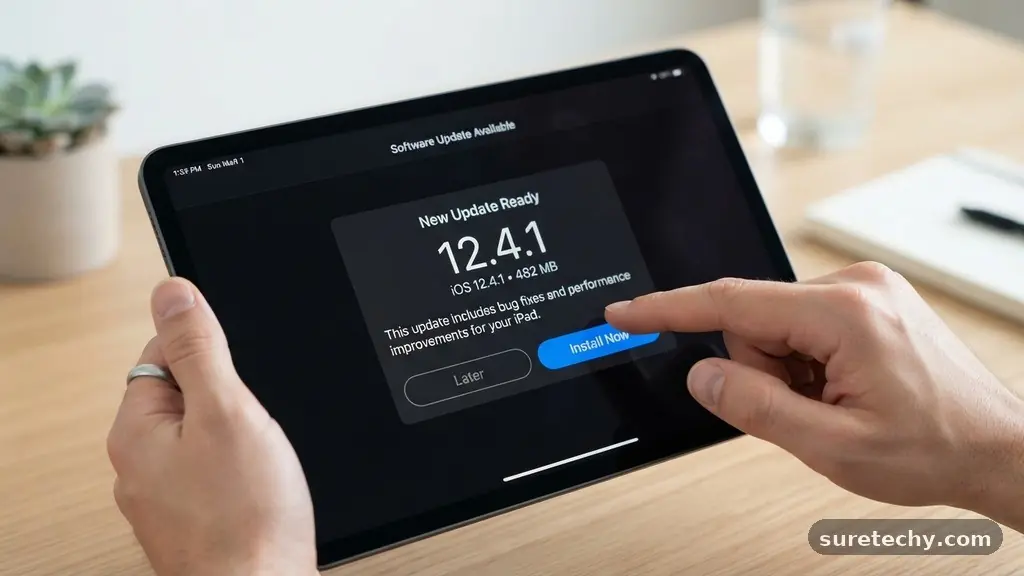
Your device’s operating system is designed to handle the heavy lifting of security for you. Whether you are using Windows, macOS, Android, or iOS, the built-in update manager is the gold standard for safety.
These tools communicate directly with the manufacturer’s secure servers to check for new files. By relying on these native systems, you eliminate the risk of downloading a compromised file from a third-party source.
You should configure your device to check for updates automatically, but you should also periodically trigger a manual check. This ensures that you aren’t waiting for a scheduled sync if a high-priority security patch has just been released.
If the system settings menu says your device is up to date, you can generally trust that statement. If a website claims you need an update but your settings menu shows nothing, the website is almost certainly trying to deceive you.
Recognizing Phishing and Fake Alerts
Malicious actors frequently use social engineering to trick users into installing malware under the guise of an “urgent” update. These fake alerts often use high-pressure language, claiming your device is infected with a virus or that your current software is dangerously obsolete.
They may even use official-looking logos or icons to make the scam appear authentic. Remember that real software updates from companies like Microsoft or Apple will never demand payment or ask for your personal passwords during the installation process.
If you receive an email or a text message containing a link to “download the latest update,” delete it immediately. Official updates are pushed to your device by the manufacturer, not sent as a downloadable file via email attachments.
If you are concerned about a potential security flaw, visit the Cybersecurity and Infrastructure Security Agency website to stay informed about major vulnerabilities and official guidance. Never interact with unsolicited alerts that seem to come from out of nowhere.
The Role of Automatic Updates
Enabling automatic updates is one of the most effective ways to maintain your cybersecurity posture without constant manual effort. These background processes ensure that your devices receive patches as soon as they are tested and released by the vendor. Because these updates occur without requiring you to click through suspicious prompts, the likelihood of accidentally installing a malicious file is drastically reduced.
While some users worry about automatic updates causing system instability, the trade-off is usually in favor of security. Most manufacturers have refined their update delivery systems to be highly stable and non-intrusive.
If you are concerned about data usage, you can usually set your device to only perform these updates when connected to a Wi-Fi network. This keeps your system secure without consuming your mobile data plan or interrupting your workflow during the day.
Comparing Update Risks and Benefits
It is helpful to weigh the risks of installing an update against the risks of staying on an older version. Staying on an outdated system leaves you vulnerable to known exploits that hackers are actively trying to leverage.
Conversely, updating to a very new version might cause minor software glitches. This table summarizes how to approach different types of update scenarios.
| Update Type | Risk Level | Recommended Action |
|---|---|---|
| Security Patch | Very Low | Install immediately |
| Feature Update | Moderate | Wait 3-5 days for stability |
| Third-Party App Update | Low-Moderate | Check reviews before installing |
| Unsolicited “System” Alert | Extremely High | Ignore and delete |
Managing Updates for Third-Party Applications
Security concerns are not limited to your operating system alone; the applications you use daily also require regular maintenance. Unlike the main operating system, third-party apps often have their own internal update checkers.
Always update your apps through official storefronts like the Apple App Store or Google Play Store. These platforms vet applications for safety, providing a layer of protection that direct downloads from random websites simply cannot offer.
Be cautious when an app asks for permission to update itself while you are using it. If the app is from a reputable developer, this is usually standard practice.
However, if an obscure app suddenly requests a major update and asks for new permissions, such as access to your contacts or location, investigate further. Check the developer’s website to see if an update was actually announced before granting those new permissions.
Best Practices for a Secure Digital Environment
Maintaining a safe digital environment requires a combination of good habits and technical safeguards. Beyond just managing software updates, you should ensure that your device has a reputable antivirus or security suite installed. These programs scan incoming files and monitor your system for suspicious activity, acting as a final line of defense if a malicious update were to somehow bypass your initial caution.
- Keep your operating system and all installed applications updated to the latest versions.
- Use a password manager to keep your credentials unique and strong.
- Back up your important data to a cloud service or an external drive regularly.
- Enable two-factor authentication on all sensitive accounts to add a layer of identity verification.
- Only download software from official, verified manufacturer websites or designated app stores.
Frequently Asked Questions
How do I know if a software update notification on my phone is real?
A real update notification will appear within your phone’s native settings menu or as a system-level alert. If the message appears inside a web browser or as a random notification from an app you don’t recognize, it is likely a fake advertisement designed to trick you into downloading malware.
Is it safe to update Windows immediately when a new version is released?
For critical security patches, you should update immediately to protect against known threats. However, for major “feature” updates, waiting a few days is often safer. This gives other users time to report any widespread bugs or compatibility issues that might interfere with your daily work.
Can I get a virus from a legitimate software update?
While extremely rare, it is technically possible for a software company’s servers to be compromised and used to distribute malicious code. This is known as a supply-chain attack. However, this is far less likely than the risk you face by downloading software from unverified, third-party websites.
What should I do if my computer crashes after an update?
If your device becomes unstable after an update, try restarting it first. If the problem persists, use your system’s “rollback” or “restore” feature to revert to the previous version. Manufacturers often include these tools specifically to handle cases where an update might conflict with specific hardware configurations.
Conclusion
Taking the time to verify the source and necessity of your software is a vital step in maintaining your digital security. By relying on official system settings, ignoring unsolicited alerts, and keeping your devices updated, you effectively shield yourself from the majority of online threats. Remember that the goal of these updates is to improve your experience and protect your data, not to cause stress.
By following the strategies outlined here, you can feel confident in telling if a software update is safe to install. Make it a habit to check your settings periodically and keep your security software active. When you approach every notification with a healthy amount of skepticism and use the official channels provided by your hardware manufacturer, you keep your digital life secure and running smoothly.