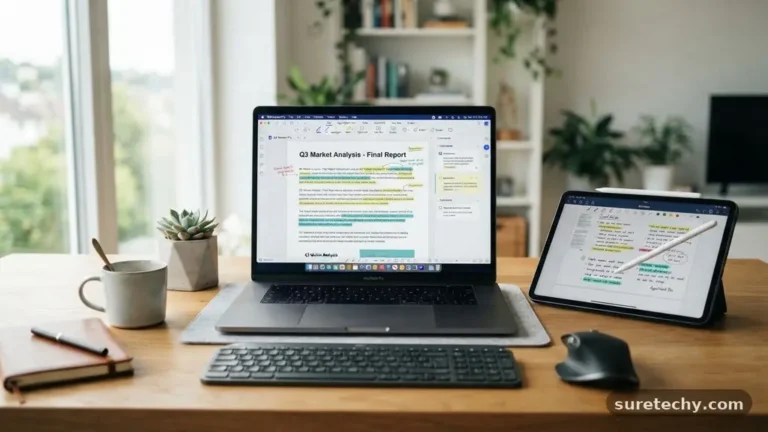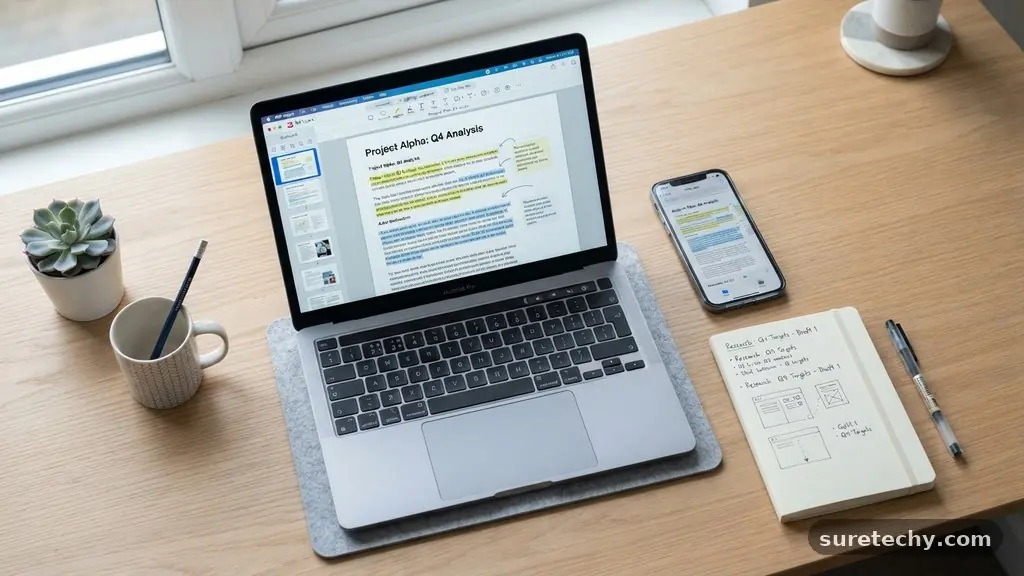
Best Free Tools for Creating and Editing PDFs: A Practical Assessment
Finding the right software to manage your digital documents shouldn’t cost a fortune. When you search for the best Free Tools for Creating and Editing PDFs, you are looking for efficiency, reliability, and ease of use without the burden of subscription fees.
Whether you need to adjust a typo in a contract, merge multiple files, or create a new document from scratch, several high-quality options exist that handle these tasks perfectly. This article examines the most effective free utilities currently available, helping you choose the right one for your specific workflow.
The Top Free Software Recommendations
If you want a direct answer, the best free program to edit PDFs depends on whether you prefer a desktop application or a browser-based solution. For users who prioritize privacy and robust features without hidden costs, PDFgear stands out as a top contender. It offers a comprehensive suite of tools that allows for text editing, file conversion, and page management without forcing you into a paid tier.
Another excellent choice for those who need design-heavy editing is Canva. While primarily a graphic design platform, it has evolved into a powerful PDF creator and editor.
You can import an existing document, modify the layout, and export it back as a clean file. If you need something lightweight that runs entirely in your web browser, platforms like Sejda or ILovePDF provide quick, effective tools for splitting, merging, and compressing files.
Desktop Editors for Power Users
Desktop applications often provide more stability when you are working with large or highly sensitive documents. Because these tools process files locally on your machine, you don’t have to worry about uploading private information to a third-party server. This is a critical factor for anyone handling legal contracts or proprietary business information.
PDFgear is currently one of the few desktop apps that delivers a full range of editing capabilities entirely for free. It supports text reflow, which is a rare feature in the free software market.
Most other “free” editors simply overlay text boxes on top of images, which can look messy if the original layout is complex. With this software, you can edit the native text, change fonts, and adjust formatting as if you were working in a standard word processor.
Browser-Based Tools for Quick Tasks
Sometimes you only have a few minutes to merge two documents or rotate a page. For these quick tasks, installing a full desktop program feels like overkill. Web-based editors are perfect for these moments because they work on any operating system, including Linux or ChromeOS.
These platforms operate on a “freemium” model, but their free tiers are usually generous enough for light users. You typically get a specific number of tasks per hour or per day.
If you exceed these limits, you might have to wait a while before processing more files. The convenience of not having to manage software updates or disk space makes these browser tools a staple for many professionals.
Comparing Popular Free PDF Solutions
To help you decide, look at how these tools compare in terms of their primary strengths. Some are better at visual editing, while others excel at heavy-duty file conversion.
| Tool Name | Best For | Platform |
|---|---|---|
| PDFgear | Full text editing and conversion | Windows/macOS |
| Canva | Graphic design and layout changes | Web |
| ILovePDF | Merging and splitting files | Web |
| LibreOffice Draw | Open-source document manipulation | Desktop |
Graphic Design and Layout Editing
When you need to modify the aesthetic of a document, general-purpose editors often fall short. This is where Canva shines. It treats your document as a collection of graphic elements, allowing you to drag and drop images, change background colors, and insert professional icons.
This approach is ideal for brochures, menus, or presentations that were saved as a file but need a visual refresh. You simply upload the file to your workspace, and the system converts the pages into editable elements.
Keep in mind that this process might change the original font if that specific typeface isn’t available in the library. Always double-check your document layout before saving the final version.
Handling Sensitive Files Safely
Security is the biggest concern when using free tools for creating and editing PDFs. Whenever you upload a document to a website, you are trusting that site’s server to handle your data correctly. While most reputable services delete your files from their servers within a few hours, there is always a residual risk.
If you are working with bank statements, medical records, or sensitive corporate data, use a desktop-based application instead. By keeping the processing local, you ensure that your file never leaves your own hard drive.
You can learn more about digital security practices through the Cybersecurity and Infrastructure Security Agency. Their resources provide context on why local processing is often the safer route for confidential information.
Essential Features to Look For
Not all free editors are built the same way. When evaluating a new tool, look for these specific capabilities to ensure it meets your professional needs.
- Text reflow: The ability to edit text without breaking the surrounding layout.
- OCR (Optical Character Recognition): Essential for turning scanned images into searchable, selectable text.
- Annotation tools: Highlighting, commenting, and adding digital signatures.
- Compression: Reducing file sizes for easy email attachments.
- Conversion: Changing formats from PDF to Word, Excel, or JPEG.
If a tool lacks OCR, you will be limited to editing only digital files that were created from a text-based source. If you work primarily with scanned paperwork, finding a tool with reliable, free OCR support is non-negotiable.
Tips for Better File Management
Using the best Free Tools for Creating and Editing PDFs is only half the battle. You also need a system for organizing your files so you don’t lose track of different versions. Use clear, consistent naming conventions like “ProjectName_Draft_Date.pdf.”
Avoid saving over your original files. Always create a copy before you begin editing, so you have a backup if the software encounters an error or if you make a mistake you can’t undo. If you work on multiple devices, consider using a cloud storage folder that syncs your work, but be mindful of the security implications of storing sensitive files in the cloud.
Frequently Asked Questions
Is it truly safe to use free online PDF editors?
Most reputable sites are safe for non-sensitive documents. However, avoid uploading confidential contracts or private financial data to any cloud-based editor. Always check the site’s privacy policy to see how long they store your uploaded files.
Can I edit a scanned document for free?
Yes, but you need a tool that includes OCR technology. Without OCR, the software will see your scan as a flat image rather than editable text. Look for tools that specifically mention support for scanned documents.
Which free tool is best for adding signatures?
Many browser-based tools like ILovePDF or SmallPDF have dedicated signature features. These allow you to draw, type, or upload an image of your signature and place it anywhere on the page.
Do free editors add watermarks to my files?
Some free editors do add watermarks, especially if you use their more advanced features. Always read the fine print before you start working. Tools like PDFgear generally do not add watermarks to your documents.
Can I convert a PDF back to a Word document?
Yes, most free editors offer conversion features. Simply upload your file, select the “Export to Word” option, and download the resulting document. This is often the easiest way to perform heavy text editing.
Closing Thoughts on PDF Management
Selecting the right software for your needs doesn’t have to be a complicated process. By focusing on whether you need a desktop application for security or a web-based tool for convenience, you can easily find the best Free Tools for Creating and Editing PDFs that fit your workflow. Remember that the best tool is one that reliably performs the specific task you need, whether that is simple page rotation or complex text modification.
Start by testing one or two of the recommendations mentioned here and see how they integrate with your daily routine. With the right software in your toolkit, managing your digital documents becomes a quick, effortless part of your day rather than a source of frustration.