How to Move Large Files Without Losing Data Effectively
Successfully moving Large Files Without Losing Data requires a mix of reliable hardware, stable internet connections, and the right software tools. Whether you are migrating a lifetime of photos to a new computer or sending high-resolution video projects to a client, the process hinges on data integrity and verification.
By focusing on checksums, secure protocols, and physical redundancy, you can ensure your information arrives intact every single time. This article breaks down the most efficient strategies for handling massive data sets, helping you avoid common pitfalls like corrupted files or incomplete transfers that often plague large-scale digital migrations.
Verifying Data Integrity with Checksums
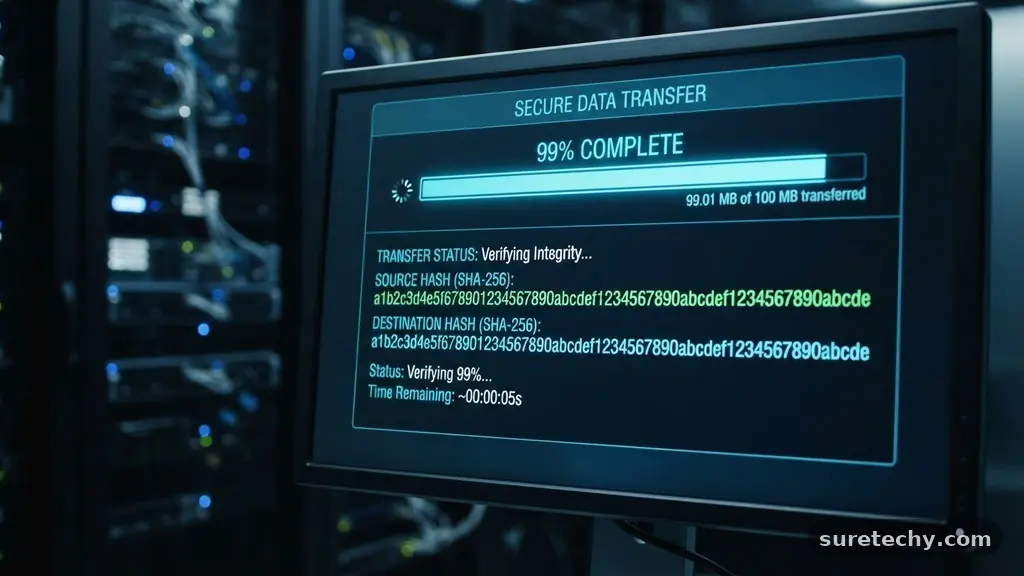
The single most important step when moving large data sets is ensuring that the copy is identical to the source. A checksum acts as a digital fingerprint for your file, allowing you to compare the original with the version you just moved. If even a single bit changes during the transfer, the checksums will not match, alerting you to a potential error.
Most modern operating systems have built-in tools for this purpose. On Windows, you can use the Command Prompt with the certutil command to generate an MD5 or SHA-256 hash.
For macOS or Linux users, the shasum command performs the same function. By running these commands before and after you move your data, you gain absolute certainty that nothing was lost in transit.
This process is vital when transferring massive archives or compressed folders. If a file is several gigabytes in size, visual inspection is impossible. Automating the verification phase takes the guesswork out of the equation and provides a professional level of security for your most important digital assets.
Choosing the Right Physical Storage Media
When you decide to move large files without losing data, physical media remains one of the most reliable options. An external solid-state drive (SSD) is generally superior to a traditional hard disk drive (HDD) because it has no moving parts. This makes it far less susceptible to physical damage during transport or accidental drops.
If you are choosing an external drive, look for models that support USB 3.1 or USB-C protocols. These connections offer significantly higher throughput, which reduces the time the drive stays active and lowers the window of opportunity for a hardware failure. Always format your drive using a robust file system like exFAT if you need compatibility between Windows and macOS.
Avoid using cheap flash drives for critical data migrations. These devices often use low-quality memory controllers that can fail prematurely under the heat generated by long, sustained transfers. Investing in a reputable brand-name drive ensures that the internal components are built to handle the stress of moving massive volumes of information.
Utilizing Cloud Services for Secure Transfers
Cloud storage platforms have evolved into powerful tools for moving data between remote locations. Services like Dropbox, Google Drive, and OneDrive are designed to handle large file transfers by using “delta syncing.” This technology only uploads the parts of a file that have changed, which drastically minimizes the risk of total data loss during a network interruption.
When using these services, ensure you are utilizing the desktop application rather than a web browser interface. Browser uploads are prone to timeouts and session resets, which can cut off a massive transfer mid-way. The dedicated desktop clients are designed to resume interrupted transfers automatically, providing a much more stable environment.
For those who need to send files to others, dedicated transfer services are often more effective than standard email attachments. Email providers usually impose strict size limits and often re-encode files, which can cause subtle data degradation. Dedicated services maintain the original bit-for-bit structure of your files during the entire journey.
Comparing Common Transfer Methods
Choosing the right method depends on the distance, the volume of data, and the available time. Each approach carries different risks and benefits that you should weigh before starting the process.
| Method | Best For | Primary Benefit |
|---|---|---|
| External SSD | Local backups | Highest speed and security |
| Cloud Sync | Remote collaboration | Automated resume feature |
| Network Transfer | Office environments | No extra hardware needed |
| FTP/SFTP | Server management | High level of encryption |
Managing Network-Based Transfers
If you are transferring files over a local area network (LAN), the stability of your connection is the biggest variable. Using a wired Ethernet connection is always safer than relying on Wi-Fi for large volumes of data. A momentary flicker in a wireless signal can crash a transfer that has been running for hours.
If you must use Wi-Fi, ensure your router is operating on the 5GHz band to minimize interference from other household devices. You should also disable power-saving settings on your computer that might put the network adapter or the hard drive to sleep during long tasks. These settings are often the hidden culprits behind failed transfers.
For advanced users, using command-line tools like rsync can offer superior control. This utility is specifically designed for synchronization and can resume interrupted transfers perfectly. It is a powerful way to handle moving large files without losing data, especially when dealing with massive directories containing thousands of individual items.
Understanding File Compression Risks
Compression is a common way to package large amounts of data into a single, manageable file. Using formats like .zip, .tar, or .7z can make moving your data easier, but it introduces a single point of failure. If the archive file becomes corrupted, you may lose everything contained within it.
If you choose to compress your files, always use the “test” or “verify” function provided by your compression software after the archive is created. This step checks the integrity of the compressed data before you even attempt to move it. It is a small time investment that prevents the disaster of discovering a broken archive at the destination.
Consider using recovery records when creating large archives. Many modern compression formats allow you to add “PAR” or parity files, which act like a safety net. If a few bytes of the archive are corrupted during the move, these recovery records can often repair the damage automatically, saving your data from permanent loss.
Handling Permissions and Metadata
Moving files often involves more than just the raw content; it involves file permissions, timestamps, and metadata. If you are moving data between different operating systems, these attributes can be lost or altered. This is particularly common when moving files from a Windows machine to a Linux server.
To preserve these attributes, use archival tools that support “archival mode” or “preserve metadata” settings. For example, using the tar command with specific flags ensures that ownership and permission settings remain intact. Without these, you might find that you cannot open or edit the files once they reach their new home.
If you are moving data for professional archives, keeping the original creation dates is often a legal or organizational requirement. Always check the settings of your transfer tool to ensure it is configured to copy file attributes. It is a frequently overlooked step that can cause significant headaches during later file management.
Best Practices for Large Data Migrations
Creating a structured plan is the best way to ensure success. You should never move your only copy of data.
Always keep the source files in place until you have confirmed the integrity of the destination copy. This “copy-then-delete” approach is the golden rule of data management.
- Always maintain a primary backup before initiating a move.
- Use a wired connection whenever possible to prevent signal dropouts.
- Verify the destination copy using checksums or built-in file comparison tools.
- Break massive migrations into smaller, manageable batches.
- Document the folder structure before starting to ensure everything arrives.
If you are dealing with terabytes of data, consider using professional tools like GNU Coreutils, which provide the most reliable way to copy and verify data on Unix-like systems. These tools have been refined over decades to handle edge cases that standard file managers often ignore. By following these rigorous standards, you eliminate the uncertainty that usually comes with moving large files without losing data.
Frequently Asked Questions
Is it safer to use a cloud service or an external drive?
An external drive is usually faster and more reliable for very large data sets because it doesn’t depend on internet speed. However, cloud services offer better protection against physical disasters like fire or theft at your location.
How do I know if my file was corrupted during a move?
The only way to be 100% sure is to compare the checksum of the file before and after the move. If the hashes do not match, the file has been corrupted or truncated.
What should I do if a large transfer stops unexpectedly?
Do not restart the process from scratch immediately. If you are using a tool like rsync or a modern cloud client, the software should automatically resume the transfer. If you are using a basic copy-paste function, you may need to delete the partial file and restart to avoid overwriting issues.
Can I compress my files to make the transfer safer?
Compression itself doesn’t make the transfer safer, but it does allow you to include parity files or recovery records. These records can help you repair the file if a small amount of data is lost or corrupted during the transfer process.
Why do my file timestamps change when I move them?
Operating systems often treat a “moved” file as a “new” file at the destination. To preserve original timestamps, you must use specific copy commands or archival software that explicitly includes a “preserve attributes” option.
Final Thoughts
Ensuring your files arrive in the same state they left is a manageable task when you utilize the right tools and follow a disciplined process. By prioritizing verification through checksums and choosing reliable hardware, you significantly reduce the risks inherent in digital migration. Remember that the goal is always to create a perfect copy before ever considering the removal of your source data.
Whether you are dealing with professional projects or personal memories, following these steps will provide the peace of mind you need. Take the time to verify your files, maintain your backups, and use stable connection methods to ensure you are moving large files without losing data. Consistent habits are the foundation of healthy digital storage.