How to Recover Files After Accidentally Deleting Them
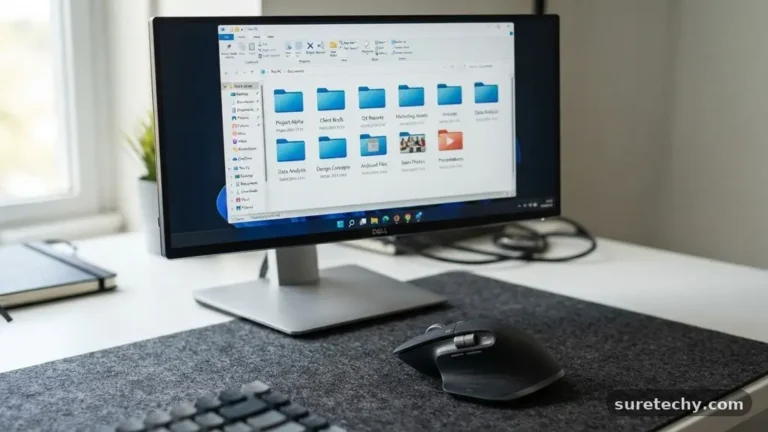
Recovering files after accidentally deleting them is a stressful experience that almost every computer user faces at least once. Whether it is a crucial work document or a collection of cherished family photos, the immediate panic is a universal reaction. Fortunately, digital storage systems are designed with several safety nets that often make data retrieval much easier than you might expect.
By understanding how your operating system handles file removal, you can effectively navigate the recovery process and restore your information. This article provides the practical steps needed to regain access to your lost data while explaining the underlying mechanisms that make such recovery possible.
Checking the Recycle Bin or Trash
The first and most important step when you lose a file is to check the system’s temporary holding area. On Windows, this is the Recycle Bin, while macOS uses the Trash.
When you press the delete key on your keyboard, your computer does not immediately destroy the data; it simply moves the file to this special folder. You can often find your missing items waiting there for a second chance.
Simply open the icon on your desktop to view its contents. If you see the file you need, right-click it and select “Restore.”
This action sends the item back to the exact folder where it lived before the deletion occurred. If you cannot find the item, use the search bar within the folder window to look for specific file names or extensions.
This method works because the operating system maintains a record of the file path. By restoring it, you are essentially telling the file system to update its index and move the file back into active status. If you have emptied the bin, however, the file path is removed from the index, and you will need to move on to more advanced recovery techniques.
Utilizing Cloud Backup Services
Modern computing relies heavily on cloud storage, which acts as a secondary safety net for your data. Services like OneDrive, Google Drive, or Dropbox often sync your files automatically.
Even if you have permanently deleted a file from your local hard drive, it may still exist on the cloud provider’s servers. Most of these platforms maintain a “Trash” or “Bin” section that holds deleted files for 30 to 60 days before final removal.
Navigate to the web interface of your cloud service provider to check their version history or trash folder. You will often find a list of files that were recently removed from your synced folders.
Selecting the file and hitting “Restore” will trigger a download or a sync back to your local machine. This is frequently the most successful path for users who work across multiple devices.
If you are using a professional-grade storage solution, you might have access to versioning features. These allow you to revert a file to a previous state, which is useful if you accidentally deleted parts of a document or corrupted it. Check your account settings or the provider’s official support documentation to see how long your specific plan retains deleted data.
Restoring from Local Backups
If you maintain regular backups, you have the most reliable insurance policy against data loss. Windows users often utilize the “File History” feature, which keeps copies of files from specific time intervals.
To access this, search for “Restore your files with File History” in the start menu. You can browse through different time stamps to find the version of the file you need.
For macOS users, Time Machine is the standard tool for this process. By connecting your external backup drive, you can enter the Time Machine interface and navigate through a visual timeline of your computer’s state. You can select individual files or entire folders and restore them to their original location with a single click.
If you do not use automated tools, you might have manually copied your files to an external hard drive or a USB stick. It is worth checking any physical storage media you have recently connected to your computer. Even an outdated backup is often better than starting from scratch, as it provides a foundation you can update later.
Understanding File System Mechanics
To effectively manage file recovery, it helps to understand what happens to your data at a technical level. When you delete a file, the operating system does not physically overwrite the binary data on your drive immediately.
Instead, it marks the clusters of space occupied by that file as “available” for future use. The file remains on the disk until new data is written over those specific sectors.
This is why it is critical to stop using the drive as soon as you realize a file is missing. If you continue to download large updates, install new software, or save new projects, you increase the risk of overwriting the very data you are trying to recover. Every new byte written to the drive brings you closer to permanent loss.
Professional data recovery specialists often compare this to a library where the index cards have been burned. The books (your data) are still on the shelves, but the librarian no longer knows where they are or how to find them. Recovery software acts as a new librarian, scanning the shelves to identify the contents of the books and rebuilding the index.
Employing Data Recovery Software
When standard tools fail, specialized software becomes the next logical step. These programs scan the raw sectors of your hard drive to find remnants of files that have been marked as deleted but not yet overwritten. Many reputable companies offer free trials that allow you to scan your drive and see if your files are still recoverable before you commit to purchasing a license.
Popular tools include Recuva, Disk Drill, or PhotoRec. These programs work by searching for specific file headers and footers, which are unique patterns that define different file types.
Even if the file name is lost, the software can often reconstruct the file structure based on these patterns. You can learn more about the technical aspects of these processes through resources like the National Institute of Standards and Technology, which provides insights into digital storage and security.
When using these tools, always install the software on a different drive than the one where the data was lost. For example, if you lost files on your C: drive, install the recovery tool on an external USB or a secondary partition. This prevents the installation process itself from overwriting your deleted files.
Comparing Recovery Methods
Choosing the right approach depends on your technical comfort level and the nature of the data loss. Some methods are built into your system and require no extra cost, while others involve third-party applications. The following table summarizes the common recovery paths.
| Method | Ease of Use | Cost | Best For |
|---|---|---|---|
| Recycle Bin/Trash | Very Easy | Free | Recent, non-permanent deletions |
| Cloud Backup | Easy | Free/Subscription | Syncing errors and remote data |
| System Backups | Medium | Free | Major file loss and versioning |
| Recovery Software | Advanced | Paid/Freemium | Permanently deleted, non-backed-up data |
Preventing Future Data Loss
The best way to handle the frustration of losing files is to ensure you never have to do it again. Implementing a redundant backup strategy is the most effective way to protect your digital life. A common industry standard is the 3-2-1 rule: keep three copies of your data, store them on two different types of media, and keep one copy offsite.
Automated tools make this process almost invisible. Services like Backblaze or Carbonite run in the background, constantly uploading your changes to a secure server.
If your computer crashes or you accidentally wipe a folder, you can retrieve your entire library with a few clicks. These services are generally affordable and provide peace of mind that far outweighs the cost.
Beyond automated software, you should develop habits that protect your work. Save your files frequently and use descriptive naming conventions to make searching easier. Periodically testing your backups—by attempting to restore a single file—ensures that your system is actually working as expected before a real emergency occurs.
When to Seek Professional Help
Sometimes, the damage to a drive is physical rather than logical. If you hear clicking sounds, smell burning, or if the drive is not recognized by any computer, do not attempt to use recovery software. Physical damage requires a clean-room environment where technicians can disassemble the drive and read the platters directly.
Attempting to force a physically damaged drive to run will often cause further destruction, making professional recovery impossible. If the data is worth the cost, contact a certified data recovery service. These companies have specialized equipment that can bypass damaged controllers and read the magnetic signals directly from the disk.
Be aware that professional recovery is significantly more expensive than software-based solutions. It is a last-resort option reserved for critical business data or irreplaceable personal memories. Always ask for a quote and a list of recoverable files before authorizing any deep-level repairs.
Frequently Asked Questions
Can I recover a file if I permanently deleted it?
Yes, it is often possible. When you permanently delete a file, the data remains on the disk until it is overwritten by new information. Using specialized recovery software as soon as possible gives you the best chance of success.
How do I know if my file is overwritten?
There is no simple notification for this. If you continue to use the drive heavily after the deletion, the chances of the space being reused increase. If the recovery software shows the file as “corrupted” or shows only partial data, it is likely that parts of the file have been overwritten.
Are free recovery tools safe to use?
Many free tools are safe, but you must be careful where you download them. Always stick to reputable websites and avoid “cracked” versions of premium software, as these often contain malware. Open-source tools like PhotoRec are highly regarded in the tech community for their safety and effectiveness.
Will a system restore bring back my deleted files?
No, a system restore is designed to revert your operating system settings and installed programs to a previous state. It does not typically affect your personal documents, photos, or data files. Do not rely on system restore to recover lost personal files.
How long do I have to recover a deleted file?
There is no fixed time limit, as it depends on how much you use your computer. If you turn off your computer immediately, the data could remain recoverable for years. If you continue to write large amounts of data to the disk, the file could be overwritten in a matter of minutes.
Conclusion
Recovering files after accidentally deleting them is a manageable process if you act quickly and stay calm. By checking your trash bins, cloud backups, and local restore points first, you can resolve most issues without needing complex software. When those options are exhausted, third-party recovery tools provide a powerful way to scan your drive for hidden data.
Remember that the most important factor in your success is preventing the drive from overwriting the deleted sectors. By minimizing disk activity and maintaining a solid backup routine, you protect yourself against the stress of future data loss.
Taking these small steps today ensures that your digital life remains secure and recoverable. If you find yourself in this situation again, start with the simplest solutions and move forward systematically.