How to Tell if a Software Update Is Safe to Install
Deciding whether to click that “update” button can often feel like a gamble when you are unsure about the legitimacy of the prompt. Learning how to tell if a software update is safe to install is essential for maintaining the health and security of your digital life. By checking official sources, verifying the source of the notification, and waiting for community feedback, you can protect your devices from potential threats.
This article provides the practical steps and context you need to make informed decisions about your technology. You will gain the confidence to manage your system updates effectively while avoiding malicious downloads that masquerade as helpful improvements.
Verifying the Source of the Update
The first step in determining if an update is legitimate is checking exactly where the notification originated. Authentic software updates should only appear through the official channels built into your operating system or the software application itself.
If you see a pop-up on a website claiming your computer is infected or that you need an urgent update, treat it with extreme suspicion. These are almost always deceptive advertisements designed to trick you into downloading malware.
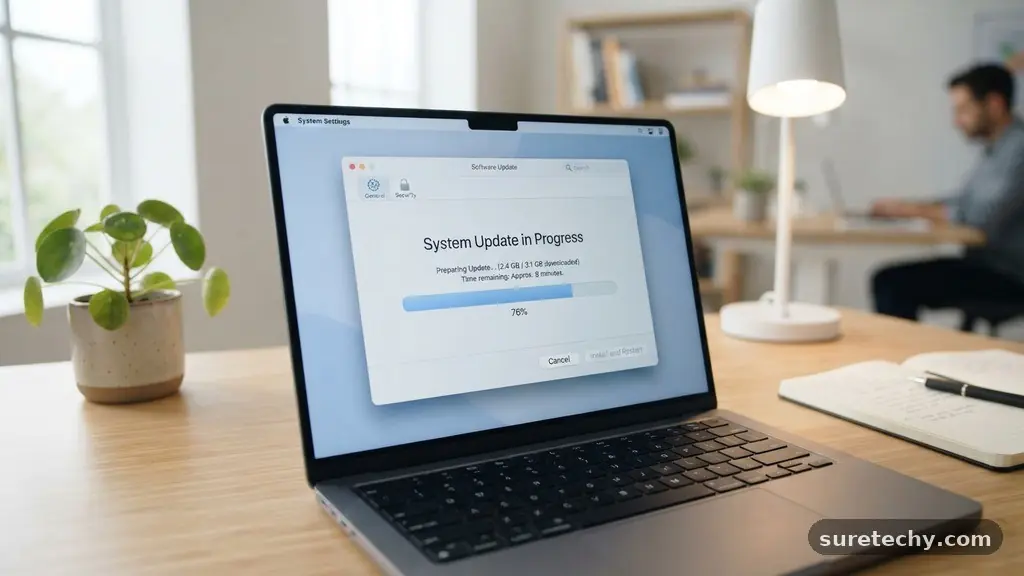
Always navigate to the settings menu of your device to initiate updates rather than clicking links within a web browser. For example, on a Windows PC, use the native Windows Update tool rather than following an email link or a banner advertisement.
If you are using a specific application like a web browser or a photo editor, look for an “About” or “Check for Updates” option within the application’s own menu. If the software says it is up to date, any external notification claiming otherwise is likely a phishing attempt.
Legitimate software vendors rarely demand immediate action through aggressive browser pop-ups. They typically run background services that handle notifications silently or through the system tray.
If you are ever in doubt, visit the official website of the software developer directly by typing their URL into your browser. Avoid using search engine results that might lead you to sponsored, unofficial download pages.
Understanding Update Release Cycles
Most major software companies follow predictable release cycles for their patches and feature upgrades. Understanding these patterns helps you distinguish between a routine maintenance update and a suspicious, out-of-the-blue notification.
For instance, many companies release security patches on a specific day of the month, such as the second Tuesday for Microsoft, often referred to as “Patch Tuesday.” If you receive a notification for a massive update on a random Thursday, it is worth exercising extra caution.
Major operating systems like iOS or Android typically announce their version upgrades months in advance. You will often see news coverage, blog posts, and official announcements from the company before these updates reach your device.
If your phone suddenly demands a “critical system update” that hasn’t been mentioned in any news outlets or official channels, check your device manufacturer’s status page. It is always safer to delay an update for a few hours to verify its authenticity.
Frequent, small updates are often standard for modern applications and browsers. These are usually designed to close security loopholes or fix minor bugs that users have reported.
While they are generally safe, you can always cross-reference the version number shown in the update prompt with the latest version listed on the developer’s official website. This quick check takes less than a minute but provides significant peace of mind.
The Role of Automatic Updates
Enabling automatic updates is one of the most effective ways to ensure your device stays secure without you having to make a decision every time. By letting the system handle the process, you remove the risk of falling for a fake update prompt, as the operating system manages the verification process internally. You can find more details on why this is recommended by reviewing the Cybersecurity and Infrastructure Security Agency’s guide on software maintenance.
Most modern devices are configured to download and install patches in the background during periods of inactivity. This approach ensures that your software is protected against known vulnerabilities as soon as the manufacturer releases a fix. When you rely on automated systems, you significantly reduce the window of opportunity for attackers to exploit unpatched software on your computer.
However, you should still periodically check your update history to ensure that the process is actually working. Sometimes, a configuration error or a lack of disk space can cause automatic updates to fail silently.
If you notice that your device hasn’t updated in several weeks, manual intervention might be necessary. Simply trigger a manual check through your system settings to see if there are any pending items that the automated system missed.
Evaluating Community Feedback
Before you hit the button to install a major software update, it is often wise to wait a day or two to see if other users report issues. Large releases sometimes contain bugs that can impact performance, battery life, or compatibility with specific hardware. By waiting, you allow the early adopters to identify any glaring problems, which the manufacturer will usually address with a quick follow-up patch.
Check technology forums, social media platforms, or dedicated subreddits related to your specific device or software. If there is a widespread issue with a new update, you will almost certainly find discussions about it within hours of the release. If users are reporting widespread crashes or data loss, it is perfectly safe to postpone your update until a more stable version is available.
Keep in mind that some users will always complain about minor changes to the user interface or feature placements. Distinguish between these personal preferences and genuine technical stability problems.
Focus your attention on reports of system instability, networking failures, or application crashes. If the reports are limited to “I don’t like the new icon,” the update is likely safe to install from a security standpoint.
Comparing Update Risks and Benefits
When you are deciding whether to proceed, it helps to balance the risks of updating against the risks of staying on your current version. The following table illustrates why maintaining a consistent update schedule is generally the safer route for most users.
| Scenario | Security Risk | Stability Risk |
|---|---|---|
| Regular Updates | Low (Patches vulnerabilities) | Low (Well-tested) |
| Delayed Updates | High (Exposed to exploits) | Low (Proven version) |
| Ignoring Updates | Very High (Known threats) | Medium (Software gets outdated) |
As the table shows, the primary benefit of updating is the closure of security gaps. Malicious actors constantly scan the internet for devices running older, vulnerable versions of software.
By keeping your system current, you effectively close the door on these automated attacks. While there is a non-zero risk of a new update causing a minor bug, the threat of an unpatched security hole is almost always greater.
Identifying Signs of Malicious Updates
Sometimes, attackers create fake update screens that look surprisingly professional. These often appear as overlays on top of websites, sometimes accompanied by audio alerts or flashing colors to create a sense of urgency.
A legitimate update will never use scare tactics or high-pressure language to force you to download a file. If you see phrases like “Your device is at risk, click here to fix,” you are almost certainly looking at a scam.
Another tell-tale sign of a malicious update is the file type being offered. Legitimate updates for your operating system are typically delivered as system packages or through trusted application stores.
If your browser starts downloading an executable file (like a .exe or .zip file) that you didn’t explicitly request from a verified source, cancel the download immediately. Genuine updates are rarely delivered as standalone files you have to find and run manually.
If you are ever unsure, restart your computer and clear your browser cache. Often, these fake update notifications are simply scripts running in your web browser.
A clean reboot will usually clear the malicious pop-up, allowing you to check for real updates through your official system settings. Never provide personal information or payment details to a site claiming you need an “update” to unlock your device.
Managing Updates Across Different Devices
Your approach to updates should be consistent across all your devices, including phones, tablets, and desktop computers. Each platform has its own way of handling security, but the core principles of verification remain the same.
On mobile devices, always stick to the official App Store or Google Play Store for your software needs. Avoid “sideloading” apps or downloading update files from third-party websites, as these are common vectors for malware.
For desktop environments, particularly Windows and macOS, the built-in update managers are your best defense. These tools are designed to verify the digital signature of every update package they download.
This ensures that the file actually came from the manufacturer and has not been tampered with by a third party. If you are using third-party software, configure those apps to check for updates only from their own secure servers.
Consider the following list of best practices for managing your digital updates:
- Enable automatic updates for your operating system whenever possible.
- Use only official manufacturer websites for downloading drivers or software.
- Check the version number in the software settings before installing an update.
- Monitor tech news for reports on major, buggy, or problematic software releases.
- Never click “update” buttons that appear inside random web browser advertisements.
Common FAQs About Software Updates
How do I know if an update notification is legitimate?
A legitimate update notification will come from your system settings or the internal update manager of the application itself. If you see a pop-up in a web browser, it is almost certainly a fake. Always check the official settings menu on your device to see if an update is actually pending.
Is it safe to update my Windows system immediately?
Generally, yes, but for critical business machines, many IT professionals recommend waiting a few days. This allows time for any major bugs in the release to be identified by the wider community. For a home computer, keeping your system updated is the best way to maintain security.
What happens if I ignore software updates for too long?
Ignoring updates leaves your device vulnerable to known security exploits that hackers use to gain unauthorized access. Over time, your software may also become incompatible with newer apps or hardware. Eventually, your system may stop functioning correctly or become too slow to use effectively.
Can a software update damage my device?
While rare, a poorly coded update can cause performance issues or software conflicts. This is why it is important to have a backup of your important files before performing a major system upgrade. A good backup ensures that even if an update causes problems, you can restore your data easily.
How do I check if a file I downloaded for an update is safe?
If you are worried about a file you have already downloaded, use a reputable antivirus scanner to check it before running it. However, the best practice is to avoid manual downloads entirely. Always download updates directly through the software’s official update mechanism rather than a browser link.
Final Thoughts on Safe Updating
Maintaining a secure digital environment is a continuous process that requires a mix of caution and automation. By knowing how to tell if a software update is safe to install, you can effectively protect your data from the most common types of online threats. Always prioritize official channels, keep an eye on community reports, and rely on automatic systems to handle routine maintenance.
If a notification feels suspicious or overly aggressive, trust your instincts and verify the information through a secondary source. Making these small, proactive habits a part of your digital routine will pay off in the long run. Stay informed, keep your systems patched, and enjoy a safer experience online.