How to Organize Digital Files for Easier Access
Mastering the art of organizing digital files for easier access transforms your daily workflow from a chaotic scramble into a streamlined experience. When you can locate any document, image, or project asset in seconds, you reclaim hours of lost time and significantly reduce mental fatigue.
This guide provides the practical strategies you need to build a sustainable filing architecture, ensuring your virtual workspace remains tidy, logical, and fully functional. By implementing these specific systems, you will stop wasting time searching through cluttered desktops and start focusing on the work that actually matters to you.
The Foundation of a Logical Filing Hierarchy
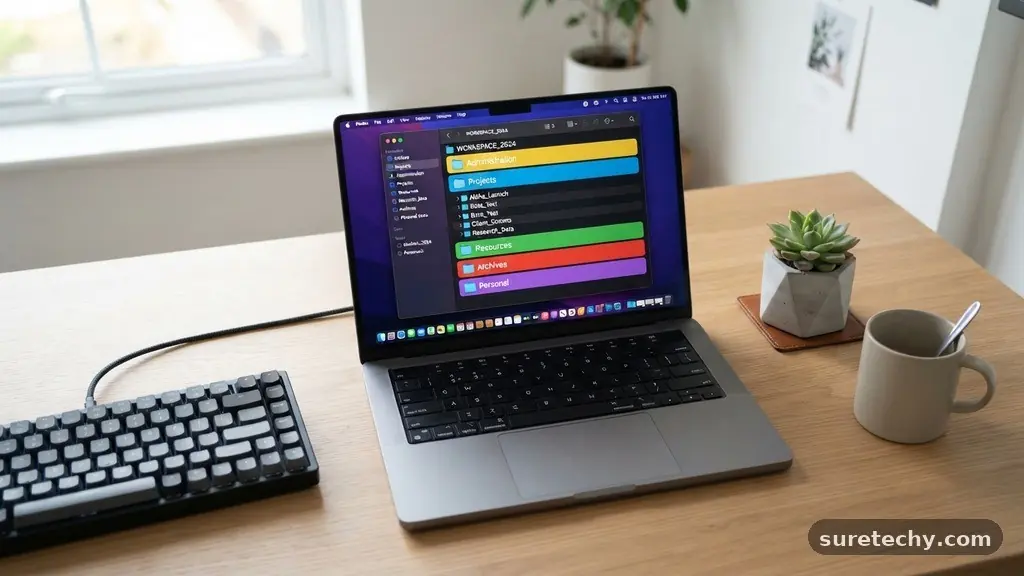
The most effective way to start organizing digital files for easier access is to establish a clear, top-level folder structure. Think of your computer like a physical filing cabinet; you need broad categories before you can drill down into specific documents.
Avoid creating dozens of loose folders on your desktop, as this visual clutter creates immediate friction. Instead, create a few primary folders based on the major areas of your life or work.
A common approach involves separating your life into “Personal,” “Professional,” and “Archive” directories. Within each of these, you can create sub-folders that reflect your specific needs.
For example, under “Professional,” you might have folders for “Clients,” “Projects,” and “Invoices.” This hierarchical method allows you to mentally map where a file belongs before you even click save.
Consistency remains the most critical component of this system. If you decide that all financial documents go into a specific folder, you must stick to that rule every single time.
When you deviate from your established hierarchy, you create “orphaned” files that become impossible to find later. Spend a few minutes each Friday reviewing your downloads folder to ensure everything is moved into its proper home.
Standardizing Naming Conventions for Speed
Naming your files correctly is just as important as where you store them. A file named “Document1.pdf” is virtually useless if you have hundreds of them, whereas “2023-10-24_Invoice_ProjectAlpha.pdf” tells you everything you need to know at a glance. Adopting a standardized naming format allows your operating system’s search function to work with much greater precision.
Start by using a date format that sorts chronologically, such as YYYY-MM-DD. This ensures that when you sort by name, your files appear in the order they were created.
After the date, include a descriptive title, followed by a version number if necessary. This simple pattern prevents the frustrating “final_v2_really_final.pdf” situation that plagues many collaborative projects.
You should also avoid using special characters or excessive spaces in your filenames. While modern operating systems handle these better than they used to, they can still cause issues when transferring files between different platforms or cloud services. Stick to underscores or hyphens to separate words for maximum compatibility and readability.
Managing Digital Photos and Media Assets
Organizing thousands of digital photos requires a different strategy than managing text-based documents. Attempting to name every single photo individually is an exercise in futility.
Instead, prioritize a folder structure based on time and event. Grouping your media by “Year” and then by “Month” provides a natural timeline that is easy to navigate.
For significant events, such as weddings or major trips, create dedicated folders with descriptive names. This allows you to find specific memories without needing to remember the exact date they were captured.
If you use photo management software, leverage the built-in tagging features to add metadata like “Family,” “Vacation,” or “Work.” Metadata is a powerful, invisible way to search for files that goes beyond simple folder names.
Consider the following table to help you decide how to categorize your media files effectively:
| Category | Storage Strategy | Primary Benefit |
|---|---|---|
| Daily Snaps | Year/Month Folders | Maintains a clear timeline |
| Project Assets | Client/Project/Type | Separates work from play |
| Archived Media | External Drive/Cloud | Frees up primary storage |
| Important Docs | Subject-based folders | Ensures quick retrieval |
Utilizing Cloud Storage and Syncing
Cloud storage services are essential for modern file management because they provide redundancy and accessibility across multiple devices. When you store your files in the cloud, you ensure that your data is safe even if your physical computer fails. Most major providers, such as the Google Drive platform, offer robust search capabilities that index the text inside your documents.
However, you must be careful not to replicate your desktop’s mess in the cloud. Before uploading, take the time to clean up your local files so that you are only syncing what you actually need. Use the “offline access” feature for files you use daily, while keeping less frequently accessed items in the cloud-only state to save space on your hard drive.
Consistency between your local machine and your cloud storage is paramount. If you move a folder on your computer, ensure that the change reflects in the cloud.
Many users find it helpful to keep their primary working directory inside the cloud-synced folder so that every save is automatically backed up. This removes the manual burden of moving files to a backup location.
Developing a Weekly Maintenance Routine
The best system in the world will fail if you don’t maintain it. Set aside a recurring block of time, perhaps 15 to 30 minutes every Friday, to perform a “digital reset.”
During this time, clear out your Downloads folder, delete temporary files, and ensure everything you created during the week is filed correctly. This small habit prevents the accumulation of “digital debt” that eventually leads to a cluttered, unmanageable system.
During your maintenance session, look for duplicate files. We often save the same document in multiple places, which wastes storage space and creates confusion about which version is the current one.
Use built-in file search tools or simple utility apps to identify and remove these duplicates. Having one single source of truth for every document is the goal of any efficient filing system.
If you find that a particular folder has become a dumping ground, take a moment to refine its sub-folders. Perhaps you have too many files in one category, and it is time to split them into more specific groups. Treat your digital workspace as a living environment that needs occasional pruning to remain effective and easy to navigate.
Handling Email Attachments and Downloads
Email attachments are a common source of digital clutter that often gets ignored. When you download a file from an email, it usually lands in your Downloads folder and stays there forever.
To stop this, cultivate the habit of saving the file to its destination folder immediately upon opening it. If it doesn’t have a place to go, create that folder right then and there.
For attachments that you don’t need to keep, delete the email entirely after the task is complete. If you are using a modern email client, use the search function to find old attachments rather than keeping them in your inbox. Inbox zero is not just about clearing emails; it is about managing the files that arrive within them.
You can also use automation tools to help manage these incoming files. Many email services allow you to set up filters that automatically move messages with attachments into specific labels or folders. By directing the flow of information at the source, you reduce the amount of manual sorting you have to do later.
Essential Tools for Better File Management
Sometimes, the native file explorer on your operating system isn’t enough to handle your needs. There are many specialized tools designed to help you organize digital files for easier access. For instance, search-heavy users often benefit from third-party desktop search applications that index files much faster than the default system search.
Consider these common methods for improving your workflow:
- Use file-renaming utilities to change the names of hundreds of files at once.
- Install cloud-syncing clients that allow you to selectively sync specific folders.
- Implement document scanning apps that use OCR to make PDFs searchable by text.
- Leverage external hard drives for archiving large projects that you don’t need daily.
- Utilize dedicated project management software to keep track of tasks separate from your files.
Don’t over-complicate your setup by installing too many tools at once. Start with one or two that solve your biggest pain points, such as a tool for finding duplicates or a better cloud syncing client. The goal is to reduce the friction of managing your data, not to add more complexity to your daily routine.
Common Questions About Digital Organization
What is the best way to organize your digital files?
The best way is to adopt a hierarchical system that mirrors your priorities. Start with broad, top-level folders and use consistent, descriptive naming conventions for every file you save.
Where is the safest place to keep your digital files?
A combination of local storage and cloud-based backup is the safest approach. This ensures you have a physical copy on your machine and a secure, redundant copy in the cloud if your hardware fails.
How do I organize my thousands of digital photos?
Organize them by date, specifically using a Year/Month structure. For special events, create sub-folders with descriptive names to make them easier to locate later without relying on individual file names.
How do I declutter digital files efficiently?
Start by tackling the “low-hanging fruit,” such as your Downloads folder and desktop. Delete obvious duplicates, consolidate similar files into folders, and delete anything you haven’t opened in over a year.
Is it better to use folders or tags?
Folders are generally better for primary organization because they provide a clear, visual structure. Tags are excellent for cross-referencing files that might belong to multiple categories, such as a “Receipt” that is also a “Tax Document.”
Final Thoughts on Digital Efficiency
Successfully organizing digital files for easier access is an ongoing process rather than a one-time project. By keeping your folder hierarchy logical and your naming conventions consistent, you build a system that supports your productivity instead of hindering it. Remember that the goal isn’t perfection; it is simply to create an environment where you can find what you need without unnecessary frustration.
As you refine your approach, you will likely find that your digital life feels lighter and more manageable. Start by cleaning up just one folder or one category today, and build on that success throughout the week.
When you take control of your virtual space, you clear the path for more creativity and focus in your daily tasks. Feel free to adjust these strategies to fit your personal workflow, and enjoy the peace of mind that comes with a well-ordered digital life.