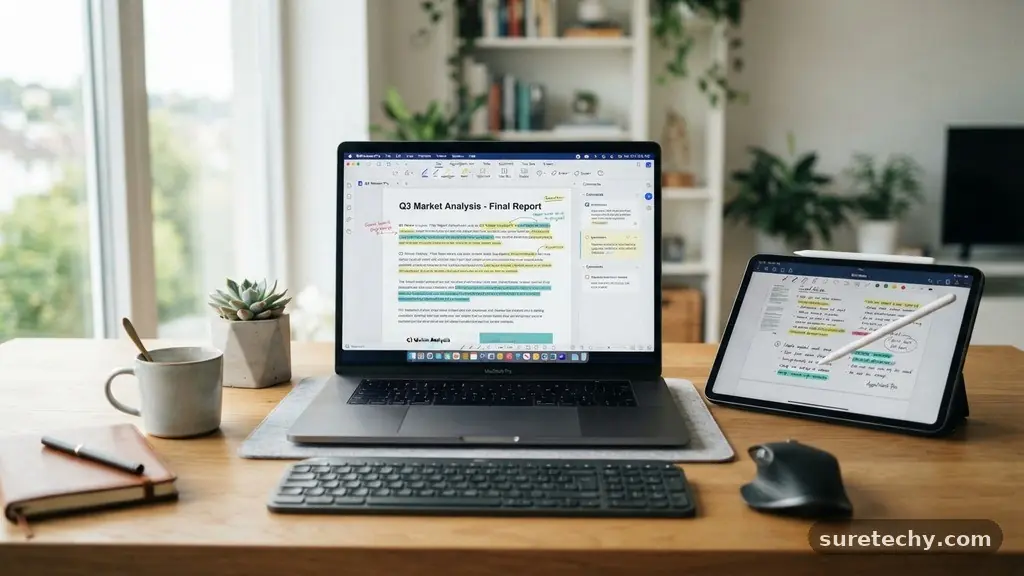
Best Free Tools for Creating and Editing PDFs: A Practical Breakdown
Finding the best Free Tools for Creating and Editing PDFs can save you significant time and money when managing digital documents. While many professional suites carry hefty subscription fees, several high-quality, reliable options exist that provide powerful functionality at zero cost. Whether you need to merge pages, convert file formats, or redact sensitive text, these applications offer accessible pathways for both casual users and professionals.
By understanding which features each platform prioritizes, you can select the right utility for your specific workflow without compromising on quality or security. This overview examines the most effective solutions currently available for your document management needs.
Top Recommendations for PDF Editors
When searching for the best Free Tools for Creating and Editing PDFs, software like PDFgear often leads the conversation. It provides a comprehensive suite of features that typically require a paid license in other programs.
Users can annotate, merge, split, and convert files into various formats without encountering watermarks or hidden paywalls. The interface is intuitive, allowing you to manipulate complex layouts with minimal learning curve.
Another standout is LibreOffice Draw, which is part of an open-source office suite. While it is not a dedicated PDF editor by trade, its ability to open and modify vector-based PDF elements makes it surprisingly powerful for visual adjustments.
It works best for users who need to rearrange page elements or add custom shapes and text boxes. Because it runs locally on your machine, it remains a secure choice for handling confidential or sensitive data.
Canva has also evolved into a functional tool for editing PDFs, particularly for documents that require high-end design elements. By importing a file into the Canva workspace, you can replace images, update typography, and modify color schemes with drag-and-drop ease.
It is particularly useful for marketing materials or presentations that need a modern visual refresh. However, it is less suitable for heavily technical documents or strict legal forms that require precise metadata preservation.
Desktop Software vs Online Converters
Choosing between desktop software and web-based platforms depends on your specific privacy requirements and connectivity. Desktop applications, such as the ones mentioned above, process your files locally.
This is a critical advantage when you are working with private contracts, medical records, or proprietary business documents. You do not need an active internet connection to finish your tasks, which is helpful if you are working while traveling.
Online converters, on the other hand, offer convenience and speed for quick, one-off tasks. These platforms work directly in your browser, meaning you do not have to install any software on your computer.
They are ideal for users who switch between different devices frequently, such as a tablet and a desktop. You should always check the privacy policy of these sites to ensure your data is deleted from their servers after the task is complete.
Essential Features to Look For
Not every free tool offers the same depth of functionality. When you evaluate the best Free Tools for Creating and Editing PDFs, you should prioritize specific capabilities that align with your daily tasks.
A truly useful editor should allow you to perform basic text editing, such as fixing typos or updating dates within an existing document. It should also support page management, including the ability to rotate, delete, or reorder pages in a single workflow.
Optical Character Recognition, or OCR, is another high-value feature that you can find in some free software. This technology converts scanned images or photos of documents into selectable, searchable text.
Without OCR, a scanned PDF is essentially just a flat picture, making it impossible to copy or edit the content. If you frequently digitize paper records, prioritize tools that include this functionality to save yourself from hours of manual retyping.
Managing Multi-Page Documents
Merging and splitting documents is a common requirement for anyone handling administrative paperwork. Many free tools allow you to combine multiple source files into one cohesive PDF with just a few clicks.
This is especially useful for creating reports that consist of different sections, such as a cover page, a data summary, and an appendix. Conversely, the split feature lets you extract specific pages from a massive document to share only the relevant portions with a client.
Look for software that supports drag-and-drop functionality for these tasks. Being able to visualize the page order before you commit to the merge saves time and prevents errors.
Some tools also allow you to adjust the file size of the final document, which is helpful when you need to email a file that exceeds typical attachment limits. Keeping your document size manageable ensures that the recipient can open it without technical hurdles.
Comparing Free PDF Utility Performance
To help you decide, consider how these tools stack up across different categories. The following table compares common features found in popular free solutions.
| Software Name | Best For | OCR Included | Privacy |
|---|---|---|---|
| PDFgear | Full-scale editing | Yes | High (Local) |
| LibreOffice | Design tweaks | No | High (Local) |
| Canva | Visual layout | No | Medium (Cloud) |
| Smallpdf | Quick web tasks | Yes | Medium (Cloud) |
Security Considerations for Document Editing
Data security remains the most important factor when choosing tools for your files. When you upload a file to a cloud-based service, you are effectively granting that provider access to your content.
While reputable services have strict deletion policies, you should avoid uploading highly sensitive information like financial statements or legal agreements to free web tools. Always opt for local, offline software whenever the sensitivity of the document is high.
You can also improve your security posture by keeping your software updated. Developers frequently release patches for their tools that address potential vulnerabilities.
If you rely on an older, unpatched version of an editor, you might inadvertently expose your system to malicious files. Check the manufacturer’s official website for security updates periodically to ensure you are using the safest version of your chosen application.
Common Workflow Bottlenecks
Even the best Free Tools for Creating and Editing PDFs can sometimes feel limited compared to enterprise-grade software. One common issue is the inability to maintain the original formatting of a file after an edit.
When you change text, the surrounding layout might shift, causing headers or footers to move out of alignment. This is a common trade-off for using free tools, as they may not have the complex rendering engines found in paid versions.
Another bottleneck is the lack of advanced form-filling capabilities. If you need to create a PDF with interactive fields, dropdown menus, or digital signature integration, you will likely find that basic editors fall short.
While you can often add a text box over a signature line, it does not technically create a “fillable” form that a user can interact with. If your business requires this functionality, you may need to look for specific open-source form-building software.
Helpful Resources and Tips
To get the most out of your document management tools, it pays to learn the keyboard shortcuts and hidden features of your chosen application. Many programs have advanced settings that are buried in the menus but can drastically speed up your work.
For instance, learning how to batch-process files can turn a task that takes an hour into one that takes seconds. You can find more information on standard document formats and best practices through the International Organization for Standardization documentation.
- Use batch processing to rename or convert multiple files simultaneously.
- Always keep an original, unedited copy of your document before making changes.
- Check the file properties after editing to ensure no metadata was accidentally left behind.
- Use a dedicated PDF printer driver if you need to convert non-PDF files into the format.
- Ensure your monitor color profile is calibrated if you are editing visual documents.
Frequently Asked Questions
Is it safe to use free online PDF editors?
Most reputable online editors use encryption to protect your data during transfer and automatically delete files from their servers after a set period. However, for highly sensitive documents, it is always safer to use local software that does not require an internet connection or file uploading.
Can I edit scanned documents with these tools?
Yes, but you specifically need a tool that includes Optical Character Recognition (OCR). Without this feature, the editor will treat the scan as a static image, preventing you from highlighting or modifying the text within it.
Do these free tools add watermarks to my files?
Many of the best free tools, such as PDFgear or LibreOffice, do not add watermarks to your documents. Be cautious of “freemium” online services that offer limited editing but force a watermark on the output unless you pay for a subscription.
Can I create fillable forms using free software?
Creating professional interactive forms is often restricted to paid, enterprise-level software. While some free tools allow you to add basic text boxes, they rarely support advanced features like checkboxes, drop-down menus, or data validation logic.
What is the most versatile option for general users?
For most people, a combination of a desktop editor for heavy lifting and a secure online converter for quick format changes is the most balanced approach. PDFgear is frequently cited as a versatile option that handles most day-to-day needs without the restrictions of a paid model.
Conclusion
Selecting the right software for your document tasks does not have to be a complicated or expensive process. By focusing on the best Free Tools for Creating and Editing PDFs, you can maintain a high level of productivity while keeping your overhead costs at zero. Whether you choose a desktop-based solution for maximum security or an online tool for its convenience, the key is to match the features of the software to your specific requirements.
Start by testing one or two of the recommended programs to see which interface feels the most intuitive for your needs. As you integrate these tools into your daily workflow, you will find that managing digital documents becomes a much smoother and more efficient experience.