How to Safely Download Software for Windows
Protecting your computer starts long before you click an installer, and learning about safely downloading software for Windows is the best way to keep your system clean. By following a few disciplined habits, you can enjoy new programs without exposing your machine to unnecessary risks. This guide breaks down the essential steps to ensure every file you save to your hard drive is verified, trusted, and secure.
Prioritize Official Sources
The most effective way to maintain a secure environment is to source your applications from the official developer websites or the Microsoft Store. When you visit a creator’s primary landing page, you minimize the risk of encountering “wrapper” installers that bundle unwanted bloatware or malicious code. Always look for the lock icon in your browser’s address bar, which confirms an active HTTPS connection.
Third-party download portals often host modified versions of legitimate programs to generate ad revenue. These sites frequently use deceptive “Download” buttons that trick users into installing adware instead of the intended software. Stick to the source code owner’s domain to ensure you are getting an authentic, untampered file every time you perform a download.
Use Built-in Security Features
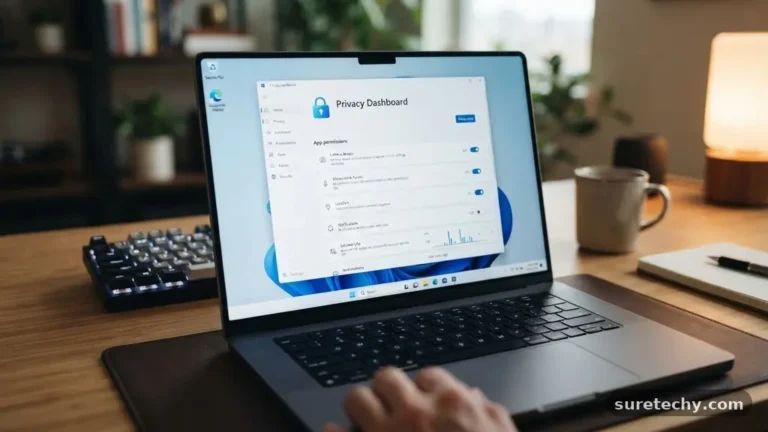
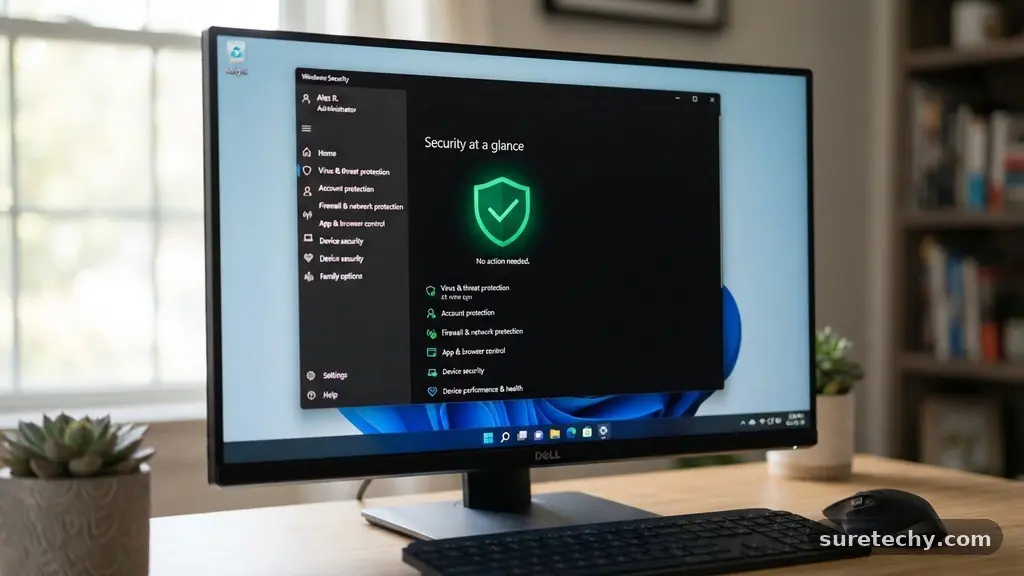
Windows includes powerful tools designed to protect you from common threats. Windows Defender acts as your first line of defense, scanning files for signatures of known malware the moment they hit your disk. Keep these features enabled, as they provide real-time protection against malicious scripts and suspicious executables.
SmartScreen is another critical layer of the Windows security stack. If you attempt to run an unrecognized or rarely downloaded file, SmartScreen will trigger a warning box, preventing execution until you explicitly override it. Never ignore these pop-ups; they are there specifically to stop you from accidentally running an unverified program that could compromise your system.
Evaluate the File Before Execution
Before you double-click any installer, take a moment to inspect the file properties. Right-click the file and select “Properties” to check the digital signature under the “Digital Signatures” tab. A legitimate developer will sign their code with a certificate that verifies their identity and ensures the file hasn’t been altered since it was signed.
If you are ever in doubt about a specific file, you can utilize an online scanner to perform a deep analysis. VirusTotal is an excellent resource that checks your file against dozens of different antivirus engines simultaneously. This cross-referencing process helps you identify potential threats that might have slipped past a single detection engine on your local machine.
Understand Installer Behavior
Installation wizards are often where unwanted software gains a foothold on your machine. During the setup process, developers may include optional offers for toolbars, browser extensions, or secondary programs. Always select the “Custom” or “Advanced” installation mode rather than “Express” or “Recommended” to see exactly what is being added.
Pay close attention to every screen during the setup wizard. Uncheck any boxes that suggest installing extra software you didn’t ask for. If an installer forces you to accept additional programs to proceed, it is often a sign that the software may not be as reputable as it appears.
Compare Methods for Acquiring Software
Different methods of obtaining programs carry varying levels of inherent risk. Understanding how these channels compare helps you make better decisions about where to spend your time. The following table illustrates the relative security profile of common software acquisition sources.
| Source Type | Security Level | Risk Factor |
|---|---|---|
| Microsoft Store | High | Low |
| Official Developer Site | High | Low to Medium |
| Tech Forums/Direct Links | Medium | Medium to High |
| Third-Party Aggregators | Low | High |
Maintain Updated Antivirus Programs
Relying solely on your own judgment isn’t enough to stay safe. You need robust, updated antivirus programs that automatically fetch the latest threat definitions. These definitions are updated daily to account for new strains of malware that emerge in the wild.
Ensure that your security software is configured to perform periodic full-system scans. If you find yourself frequently installing new tools, configure your security suite to scan files immediately upon completion of the download process. This automated habit provides a safety net for those moments when you might accidentally download a potentially unwanted program.
Create System Restore Points
Before installing significant software, it is a smart practice to create a manual system restore point. If an installation goes wrong or causes unexpected conflicts, you can revert your system to its previous state with just a few clicks. This gives you the freedom to experiment with new tools without the fear of permanently damaging your operating system.
To create a restore point, search for “Create a restore point” in your Windows search bar. Open the menu, select your system drive, and click “Create.” This simple action acts as an insurance policy, allowing you to undo changes if the software you just added behaves erratically or consumes excessive system resources.
Common Indicators of Suspicious Files
Knowing what to look for can save you from a major headache. Stay alert for these warning signs whenever you are in the process of saving files from the internet:
- File names that look like random strings of characters or numbers.
- Installers that ask for administrator privileges immediately upon opening.
- Websites that use aggressive pop-ups claiming your computer is already infected.
- Files ending in unusual extensions like .scr, .vbs, or .js instead of .exe or .msi.
- Sites that offer “cracked” or “patched” versions of paid software for free.
If you encounter any of these red flags, abandon the download immediately. Pirated software is the most common vector for distribution of sophisticated malware, as the “cracks” almost always require you to disable your security settings to run.
Frequently Asked Questions
How do I know if a file is safe?
Check the digital signature of the file and run it through an online scanner like VirusTotal. If the developer is unknown or the file has a low reputation score, it is safer to avoid installing it entirely.
What should I do if Windows Defender blocks a download?
If Windows Defender triggers an alert, take it seriously. It usually means the file is either known to be malicious or is so rare that it is considered suspicious. Only override this if you are 100% certain of the file’s origin.
Are apps from the Microsoft Store always safe?
The Microsoft Store employs a vetting process for the apps it hosts. While no system is perfect, it is significantly safer than downloading random executables from obscure websites found via search engine results.
Should I disable my antivirus to install a program?
Never disable your antivirus software to install an application. If an installer requires you to turn off your security protections, it is a massive red flag that the file contains malicious code meant to bypass your defenses.
What is the safest way to download free software?
Always go directly to the official website of the software creator. If the software is open-source, verify the download link against the official GitHub repository or the project’s primary landing page.
Final Thoughts
Safely downloading software for Windows requires a blend of vigilance and common sense. By choosing reputable sources, keeping your security tools updated, and paying attention to the details during installation, you significantly lower your chances of encountering digital threats. Remember that your computer’s health is ultimately in your hands.
Taking the extra minute to verify a file is always worth the effort to keep your system running smoothly. If you stay consistent with these habits, you’ll find that safely downloading software for Windows becomes a natural part of your routine. Feel free to revisit these steps whenever you are unsure about a new program, and share these tips with friends to help them stay protected online.