How to Manage Software Permissions on Windows Effectively
Learning the ropes of managing Software Permissions on Windows is a fundamental skill for keeping your computer secure and running smoothly. When you install new programs, they often ask for access to your camera, microphone, location, or sensitive files, and staying on top of these requests ensures your private data remains under your control.
By adjusting these settings regularly, you prevent unauthorized background activity and minimize the risk of malicious software accessing your hardware. This article provides a clear path for taking command of your digital environment, helping you understand exactly how to review and restrict what your installed applications can do on your machine.
Understanding the Windows Privacy Dashboard
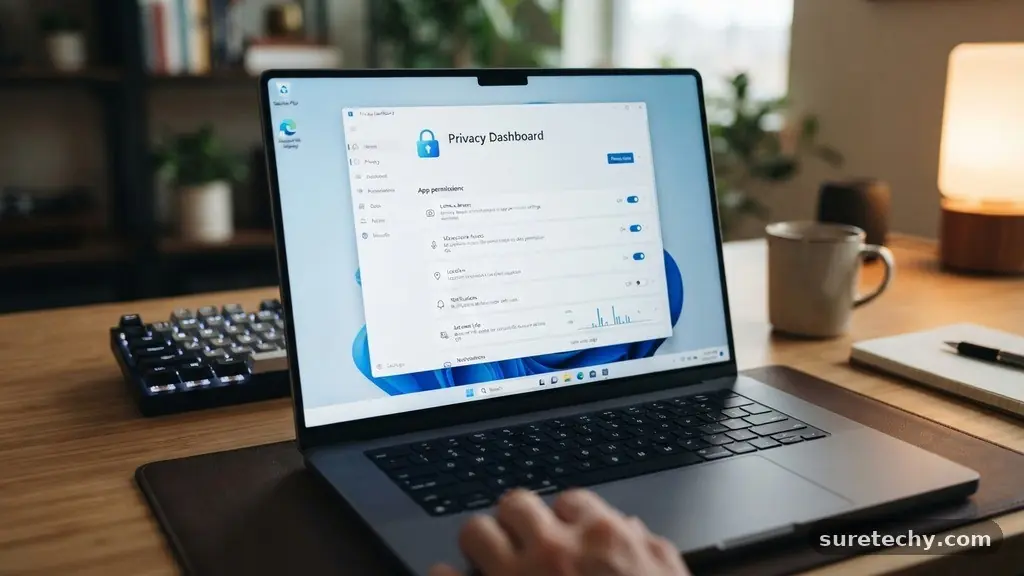
The primary hub for controlling what your applications can access is the Privacy & Security section within the Windows settings menu. This central dashboard acts as the gatekeeper for your hardware and personal information, allowing you to toggle access for specific features like the microphone, camera, and calendar.
When you open your settings, you will see a list of app permissions categorized by the type of hardware or data involved. This structure is designed to make it easy for you to identify exactly which apps are currently using your system resources.
If you notice an application you rarely use has access to your location or microphone, you can revoke that permission with a single click. Most users find that disabling access for non-essential software significantly improves their overall privacy posture.
It is a good practice to audit this list every few months, especially after you have performed a major system update or installed a batch of new tools. You can find the official Microsoft guidance on privacy settings here to cross-reference your configuration with standard recommendations.
Adjusting Permissions for Modern Apps
Modern applications, typically those downloaded from the official store, operate under a specific set of rules that allow you to toggle their capabilities individually. Unlike older desktop software, these apps are built to respect the granular permission toggles provided by the operating system.
To manage these, navigate to the specific permission category, such as “Camera,” and look for the list of apps that have requested access. You will see an on/off switch next to every application that has been granted permission to use that hardware.
This level of control is particularly helpful for privacy-conscious users who want to use apps like Skype or Zoom but do not want them active in the background. Simply flipping the switch to “Off” ensures that the application cannot trigger your camera or microphone until you manually re-enable the feature.
If an app requires a specific permission to function correctly, it will usually prompt you to re-enable it the next time you open the program. This creates a helpful feedback loop where you only grant access when it is truly necessary for your workflow.
Managing Desktop Software Access
Traditional desktop software, often referred to as Win32 applications, does not always follow the same permission rules as store-based apps. Many of these programs are designed to run with full system access, meaning they can read and write to your files without needing the granular switches found in the privacy menu.
Because of this, you must rely on different methods for managing their impact, such as using the Windows Firewall or adjusting User Account Control settings. These tools provide a layer of protection that limits how these programs interact with your system files.
If you are concerned about a specific desktop program, you can restrict its internet access via the Windows Defender Firewall. By creating an outbound rule for that specific executable file, you effectively cut off the program’s ability to communicate with external servers.
This is an excellent way to prevent data tracking without uninstalling a useful tool. While it requires a few extra steps, the added layer of security is worth the effort for software that handles sensitive data or requires high levels of trust.
Using User Account Control for Security
User Account Control (UAC) is a critical security component that prevents unauthorized changes to your operating system. When a program attempts to perform an administrative action, such as installing a new driver or modifying system files, UAC triggers a prompt asking for your permission.
This is your first line of defense against malicious software attempting to gain deep access to your computer. Keeping UAC enabled at its default or higher level is essential for maintaining a secure environment.
Some users find the constant prompts annoying and are tempted to disable them, but this is highly discouraged. If you find the frequency of alerts too high, it is usually because you are running applications that require elevated privileges constantly.
You might consider looking for alternative software that does not require administrative rights to function. By sticking to programs that respect standard user limitations, you maintain a safer system without needing to click through security warnings every time you launch a tool.
File System and Folder Permissions
Beyond hardware access, you can also manage permissions at the file and folder level to restrict which users or applications can read, write, or execute data. Right-clicking on any folder and selecting “Properties” allows you to view the “Security” tab, which contains a detailed list of access rights.
You can grant or deny specific permissions to different user accounts on your machine, ensuring that sensitive documents remain private even if multiple people use the same device. This is particularly useful in shared households or office environments.
While this feature is powerful, it is best used with caution to avoid accidentally locking yourself out of your own data. If you change permissions on a system folder, you might prevent Windows from updating or functioning correctly.
Always stick to managing permissions for your personal data folders, such as “Documents” or “Pictures,” rather than root system directories. If you need to restrict a specific application’s access to your files, consider moving those files to a protected folder that only your primary user account can access.
Key Permission Categories and Their Impact
To effectively manage your environment, it helps to understand how different categories of permissions affect your daily usage. The following table highlights common system permissions and the potential risks associated with leaving them enabled for untrusted applications.
| Permission Category | Potential Risk | Best Practice |
|---|---|---|
| Location | Privacy tracking | Disable for all but navigation apps |
| Microphone | Eavesdropping | Enable only for communication tools |
| Camera | Unauthorised recording | Keep off when not in a meeting |
| Background Apps | Resource drain | Restrict to essential services |
By reviewing this table, you can prioritize which settings to check first. It is rarely necessary for a basic text editor or a calculator app to have access to your location or camera. By systematically going through these categories, you clean up your system and ensure that only the software you truly trust can interact with your sensitive hardware components.
Common Indicators of Permission Misuse
Sometimes, you may not realize an application is abusing its permissions until you notice unusual system behavior. One common sign is a sudden spike in battery usage or CPU activity while you are not actively using a program.
Many applications request background permissions that allow them to stay active, which can lead to unnecessary data usage and system sluggishness. If you see an app consistently at the top of your battery usage list, it is a clear sign that you should review its permission settings.
Another indicator is the unexpected activation of hardware lights, such as the camera indicator LED. If this light turns on while you are just browsing the web or working in a document, an application is likely accessing the camera without your explicit intent.
You should immediately open the privacy settings to see which apps have the camera enabled. Identifying and restricting these “rogue” processes is a proactive way to maintain your privacy and improve your machine’s performance over the long term.
Essential Steps for a Secure System
To keep your Windows environment secure, consider adopting a routine of periodic audits rather than fixing issues only when they arise. Every month, take a few minutes to walk through these specific steps to ensure your permissions remain optimized for your needs:
- Check the Privacy & Security tab for any apps that have recently gained access to your location or microphone.
- Review your installed programs list and uninstall any software you no longer use or recognize.
- Verify that your User Account Control settings are set to “Always notify” to prevent silent background modifications.
- Scan your startup folder to ensure no suspicious programs are launching automatically without your knowledge.
- Update your operating system regularly to ensure all security patches for permission management are applied.
These simple habits go a long way in protecting your data. By staying organized, you reduce the clutter on your system and ensure that you are always in control of your digital footprint. Remember that your computer is a personal space, and you have every right to decide exactly what software can see and do.
Frequently Asked Questions
How do I stop an app from accessing my location?
Open the Settings app, go to Privacy & Security, and select Location. Scroll down to the list of apps and toggle the switch to “Off” for any application you do not want to track your position.
Can I see which apps are currently using my microphone?
Yes, Windows displays an orange icon in the system tray when your microphone is active. You can also go to Privacy & Security and select Microphone to see which apps have recently accessed it.
What should I do if an app won’t work after I deny permissions?
If a program stops functioning, it likely requires that specific permission to operate. Simply go back to the settings menu and toggle the permission back on to restore the app’s functionality.
Are there permissions for desktop programs that don’t appear in the privacy menu?
Yes, traditional desktop apps often bypass privacy toggles. For these programs, you should use the Windows Firewall to block their internet access or use a third-party tool to manage their system-level privileges.
Does disabling background app permissions affect updates?
Generally, no. Windows Update operates independently of standard app background permissions. Disabling these settings primarily stops non-essential software from syncing or tracking data while you aren’t using them.
Conclusion
Managing Software Permissions on Windows is an ongoing process of balancing convenience with privacy. By taking the time to audit your settings regularly, you ensure that your hardware remains secure and your data stays private. You do not need to be a technical expert to take control; simple steps like reviewing your privacy dashboard and monitoring your background applications can make a significant difference.
Start by checking your most sensitive permissions today and make it a habit to review them whenever you install new tools. As you become more comfortable with these settings, you will find it much easier to maintain a clean, secure, and efficient computing environment that respects your boundaries.